

For guests to read. Worth turning on when people are coming partly to see someone. All event tools →
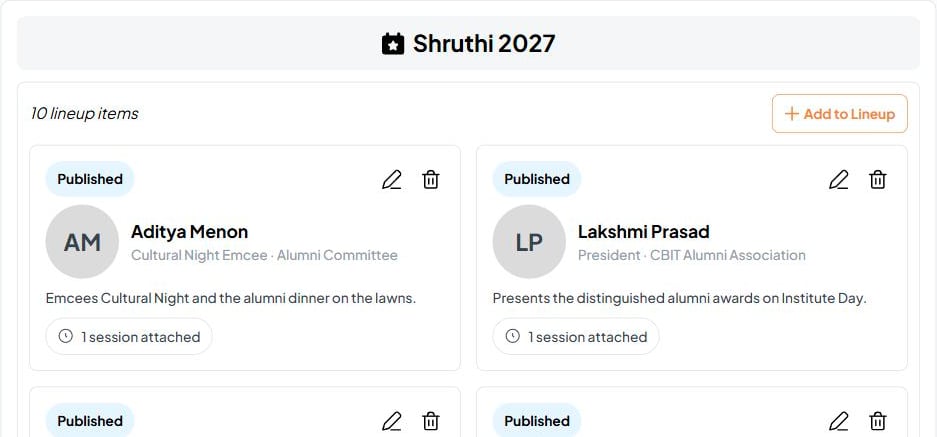
Event Lineup is available on all event types. Use it for conference speakers, festival performers, workshop facilitators, or the entertainment at a private celebration.
Name the tab for your event
The Lineup tab takes the name that fits your event. Call it Speakers for a conference, The Band or Lineup for a music night, Entertainment for a party, or anything else that makes sense to your guests. You choose the label per event.Two card styles
Each person in your lineup appears as a card, and cards render in the style that suits them:Bio-led
Best for speakers and panelists. Leads with name, role, and a short biography so guests understand their background and why they’re featured.
Visual-first
Best for performers and artists. Leads with a hero photo and media links, putting the visual identity front and center.
Linking to the agenda
Every lineup entry can be linked to one or more slots on your Event Schedule. The slot time is always read live from the agenda — so if you move a session, the lineup updates automatically and never shows a stale time. This is what lets a guest go from “I want to see this speaker” to “they’re on at 2 PM in the main hall” in one tap.Setting up your lineup
1
Open the Lineup tab
Go to your event and open the Lineup section. Name the tab to suit your event.
2
Add a person
Enter their name and details. Choose a bio-led or visual-first card depending on whether they’re a speaker or a performer.
3
Add their links
Add any public links the person has agreed to share — their website, profile, or media. These are the links guests can use to learn more.
4
Link to agenda slots
Connect the person to the agenda activity (or activities) they’re featured in. The slot time is pulled live from your schedule.
5
Set the order and publish
Arrange the lineup in the order you want guests to see, then publish so it appears in the event.
What guests can do
Once published, guests can:- Browse the full lineup and open any card to see details.
- See exactly when each person is on, pulled live from the agenda.
- Set a reminder so they don’t miss a session or set.
- Export a slot to their own calendar.
- Open the public links the organizer added to learn more about a speaker or performer.
Research with Claude
If a guest uses Claude in their own browser, they can research a featured person using the public links you’ve shared — pulling together a quick background on a speaker before a session, for example.This research runs entirely in the guest’s own browser session. Fast Party stores only the public links you, the organizer, choose to add — it never scrapes or stores third-party content. You stay in control of what’s shared.