

Custom MCP apps in ChatGPT require developer mode. The connection is per user — each person connects their own Fast Party account.
Steps to connect
1
Open ChatGPT settings
Go to chatgpt.com and sign in. Click your profile name in the bottom-left corner of the sidebar, then select Settings.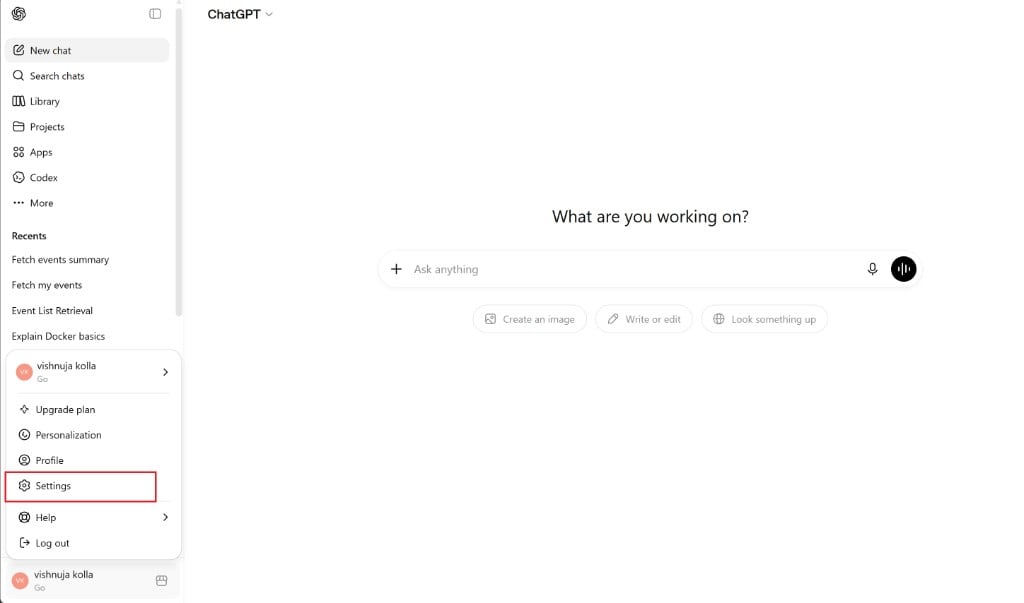
2
Go to Apps
In the Settings modal, select Apps from the left menu.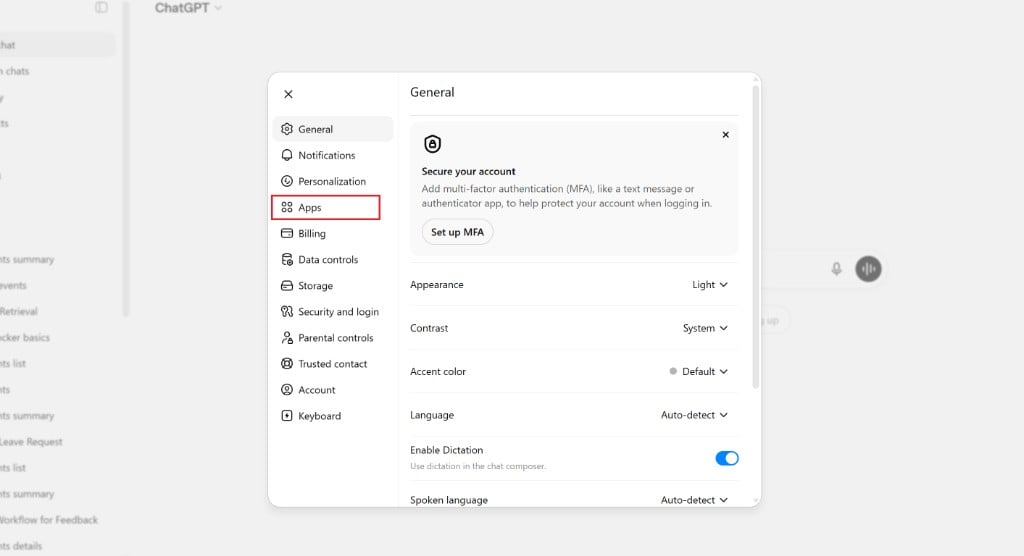
3
Create the Fast Party app
Under Enabled apps, find Advanced settings and click Create app.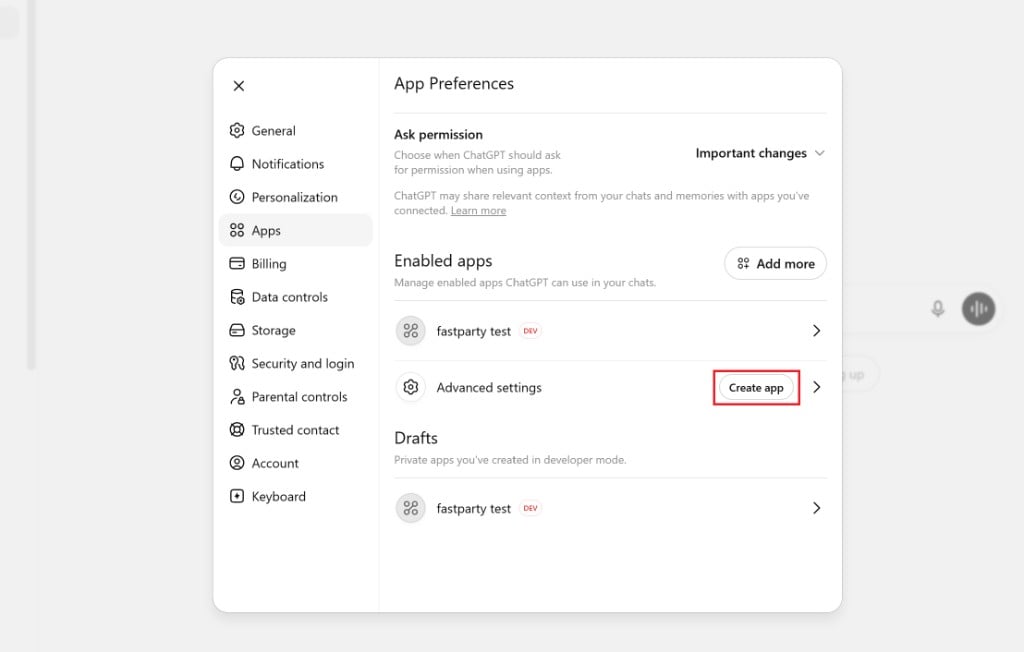
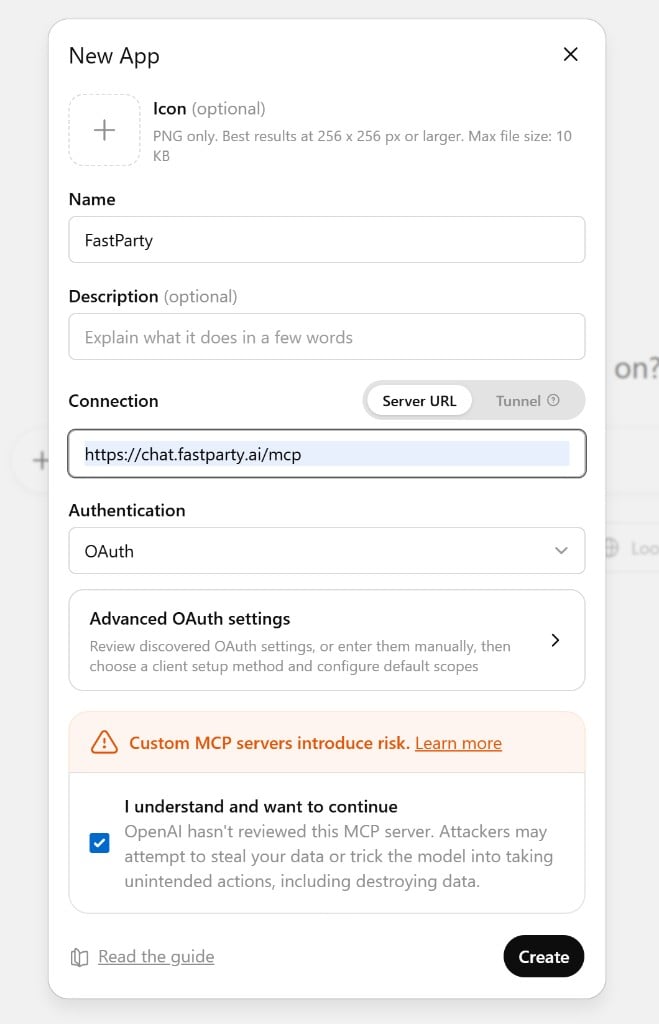
- Name:
FastParty - Connection type: Server URL
- URL:
https://chat.fastparty.ai/mcp - Authentication: OAuth
4
Click Connect
Fast Party appears in your apps list. Open it and click Connect.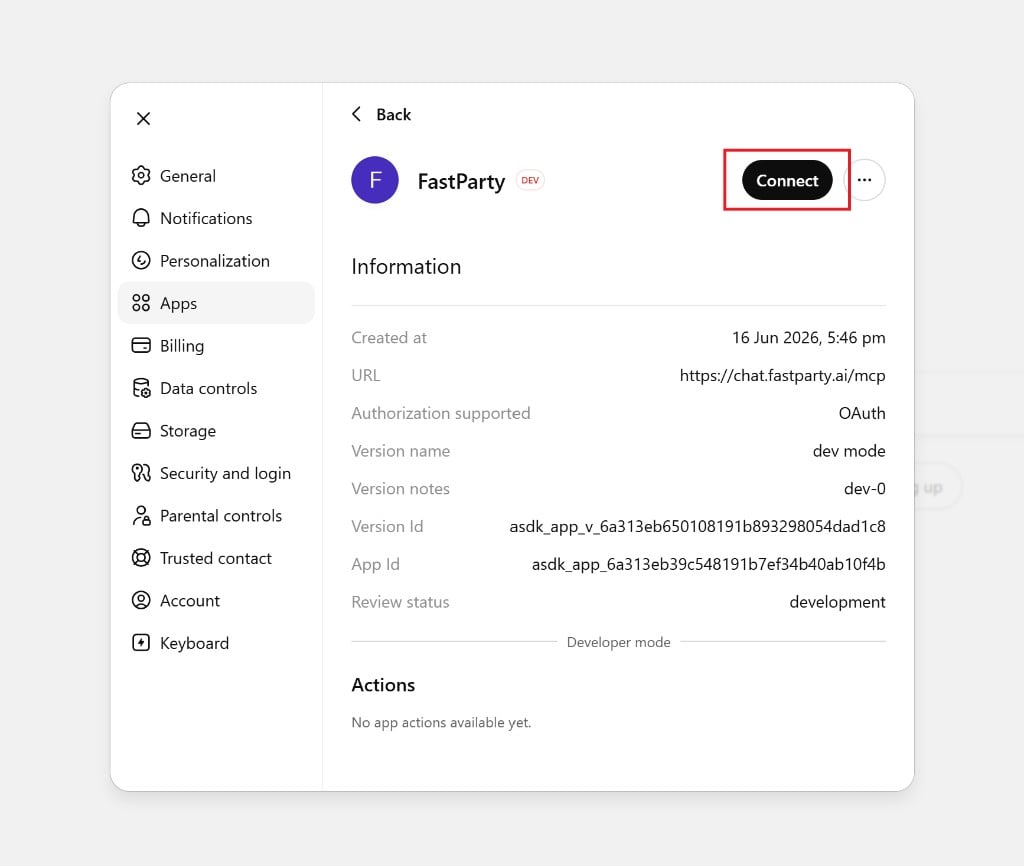
5
Sign in with Fast Party
An Add FastParty to ChatGPT window opens. Click Sign in with FastParty to authorize the connection.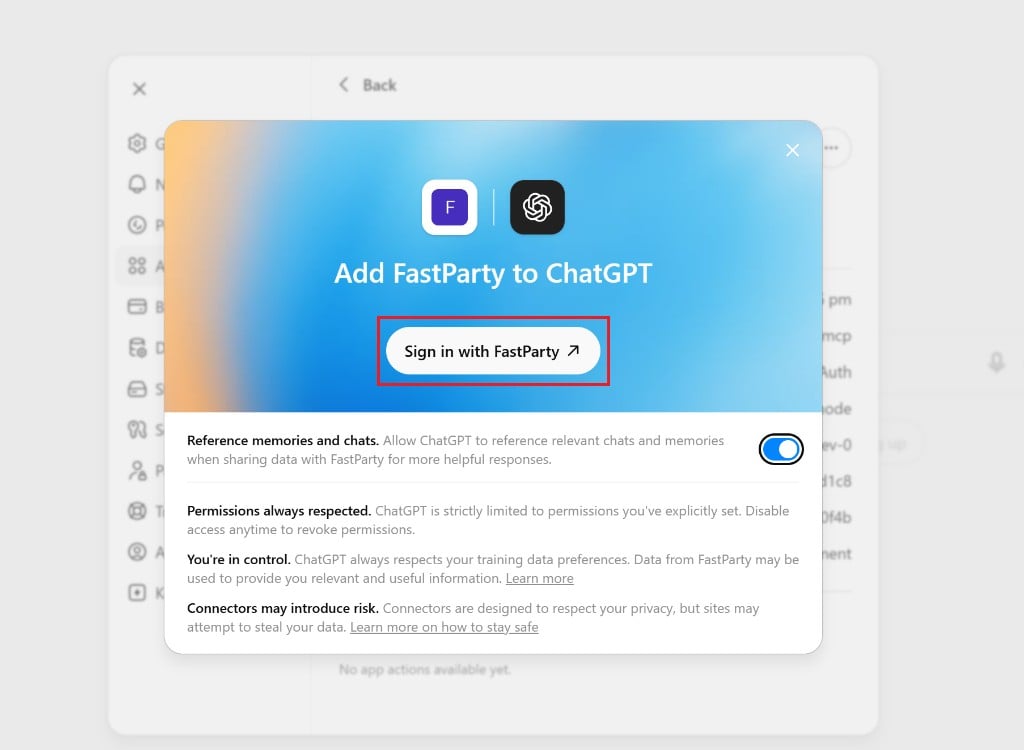
6
Log in to your Fast Party account
Sign in with your Fast Party account — using Google, Microsoft, phone number, or email. If you don’t have an account yet, you can sign up for free at app.fastparty.ai.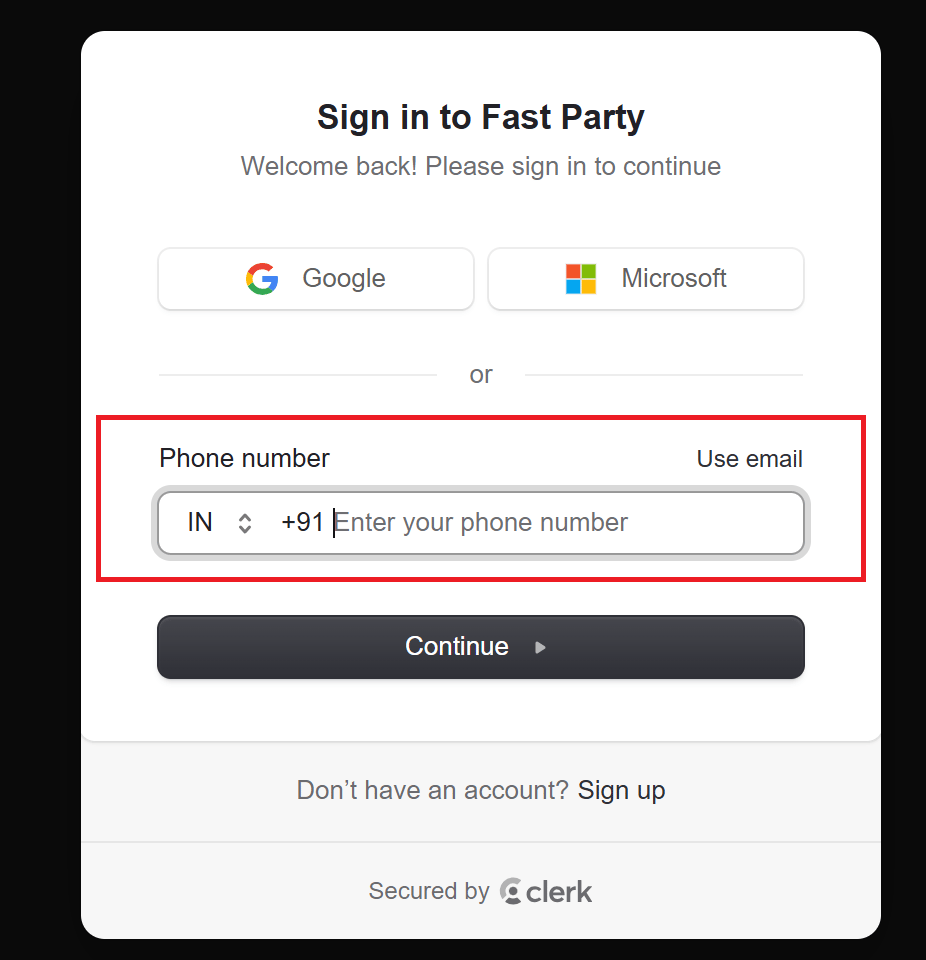
7
Verify your phone
If you sign in with a phone number, enter the 6-digit code sent to your phone, then click Continue.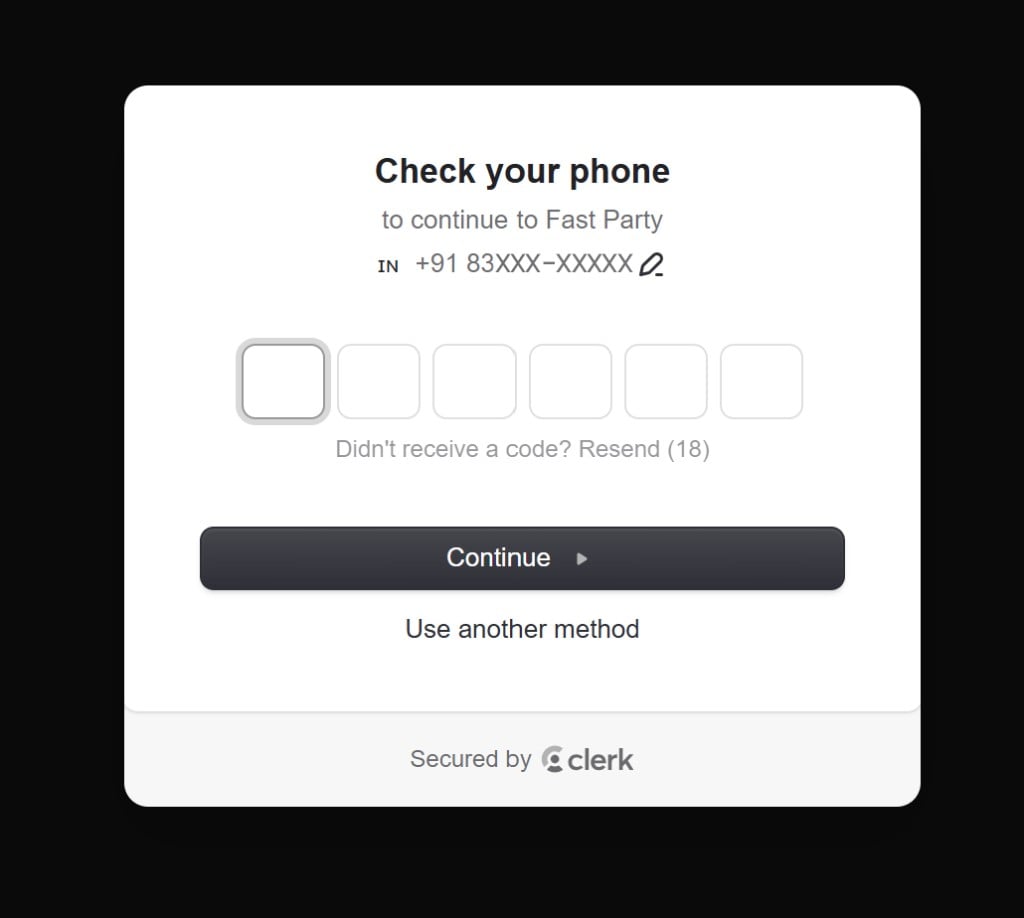
8
You're connected
Fast Party is now connected to ChatGPT. In Settings → Apps, you can see the connection details and manage permissions. Click Refresh if the connection status doesn’t update right away.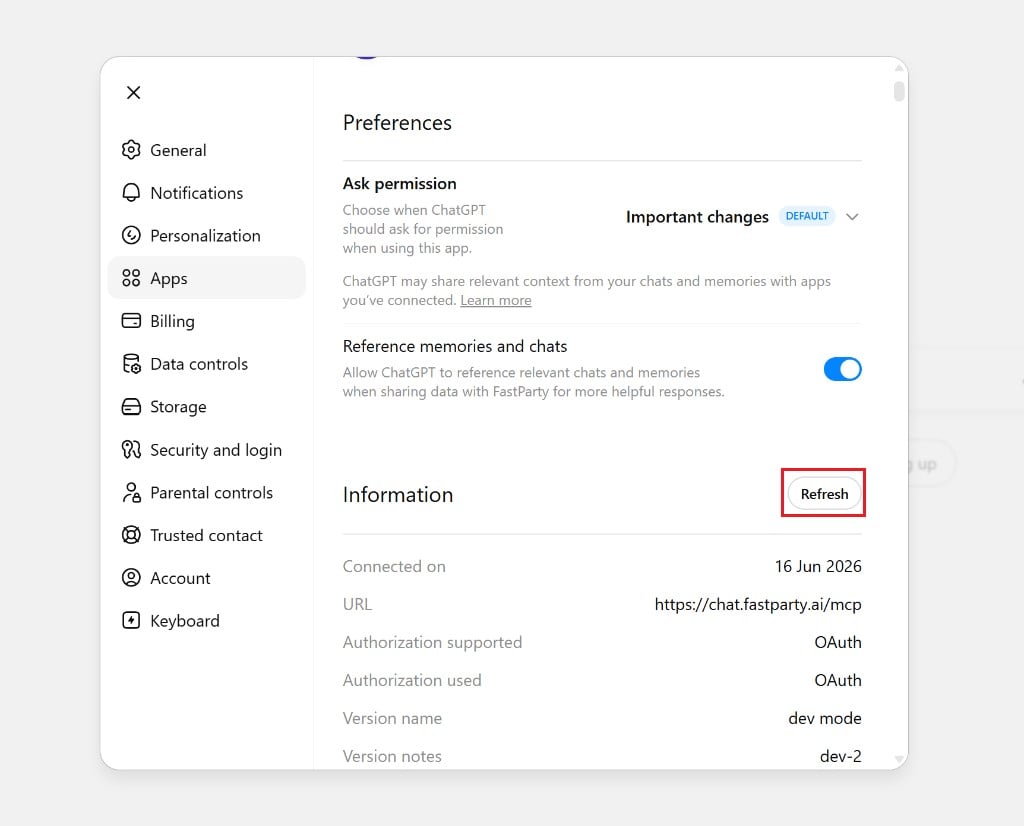
9
Use Fast Party in a chat
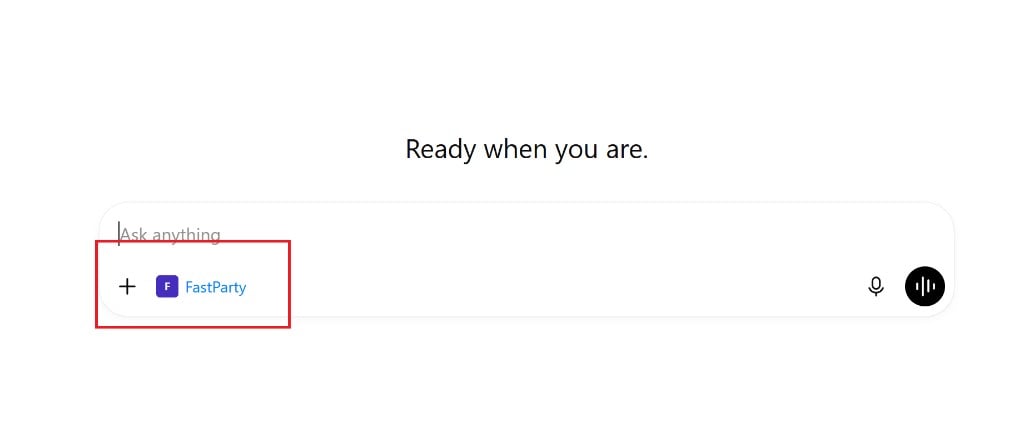
Start a new chat. Click the + icon in the message bar, select More, then choose FastParty. Fast Party appears in the composer and is ready to use.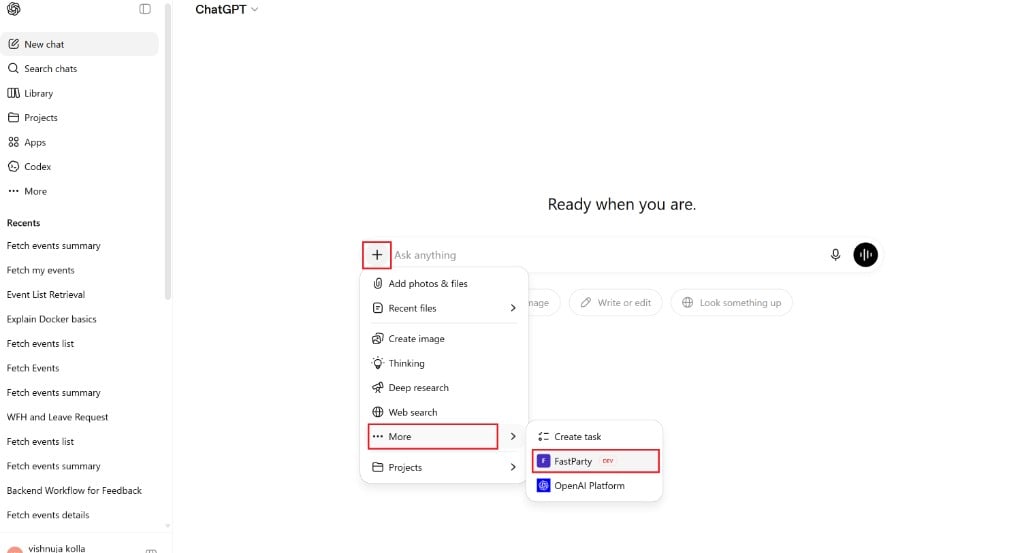
What permissions are requested?
When you connect Fast Party to ChatGPT, you’re giving ChatGPT the ability to:- Create and update your events
- Add guests and send invitations
- View RSVP statuses
- Set up agendas, tasks, food preferences, and potlucks
- Create and manage guest circles
What you can do via ChatGPT
The same Fast Party capabilities available through Claude are available through ChatGPT:- Create and edit events
- Invite guests and track RSVPs
- Build and publish event schedules
- Set up food & beverage preferences
- Create and manage potluck sign-ups
- Create and assign tasks
- Manage registration events and approve registrations
- Set up and manage Circles
Example prompts
“Create a dinner party for next Friday at 7 PM at my place, for 12 guests.”
“Add a potluck to my birthday party — mains, sides, desserts, 3 slots each — and publish it.”
“Show me the RSVPs for my housewarming event.”
“Set up a conference agenda: registration at 9 AM, keynote at 10, lunch at 12:30, workshops at 2 PM.”
“Approve all pending registrations for my charity gala.”