

Fast Party in Claude requires a Claude Pro account or higher. The connection is per user — each person connects their own Fast Party account.
Steps to connect
1
Open Claude
Go to claude.ai or open the Claude desktop app. In the left sidebar, click Customize.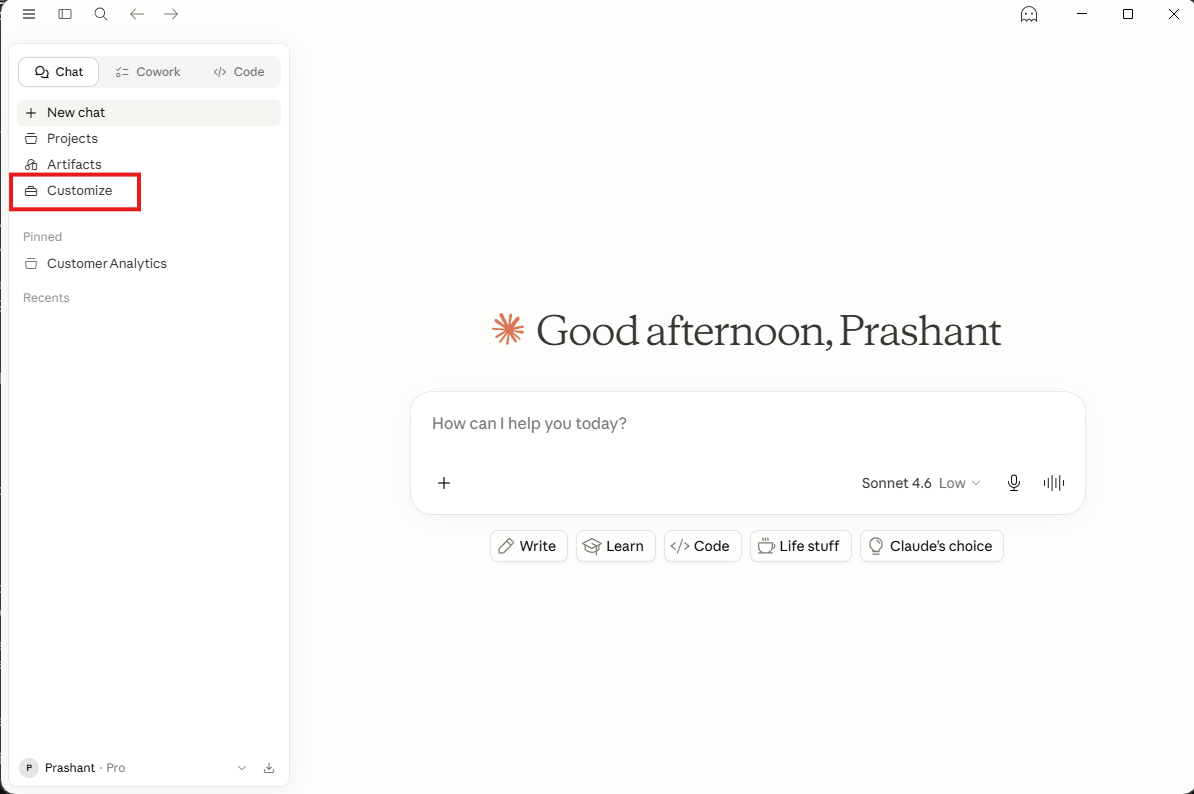
2
Go to Connectors
In the Customize panel, select Connectors from the left menu.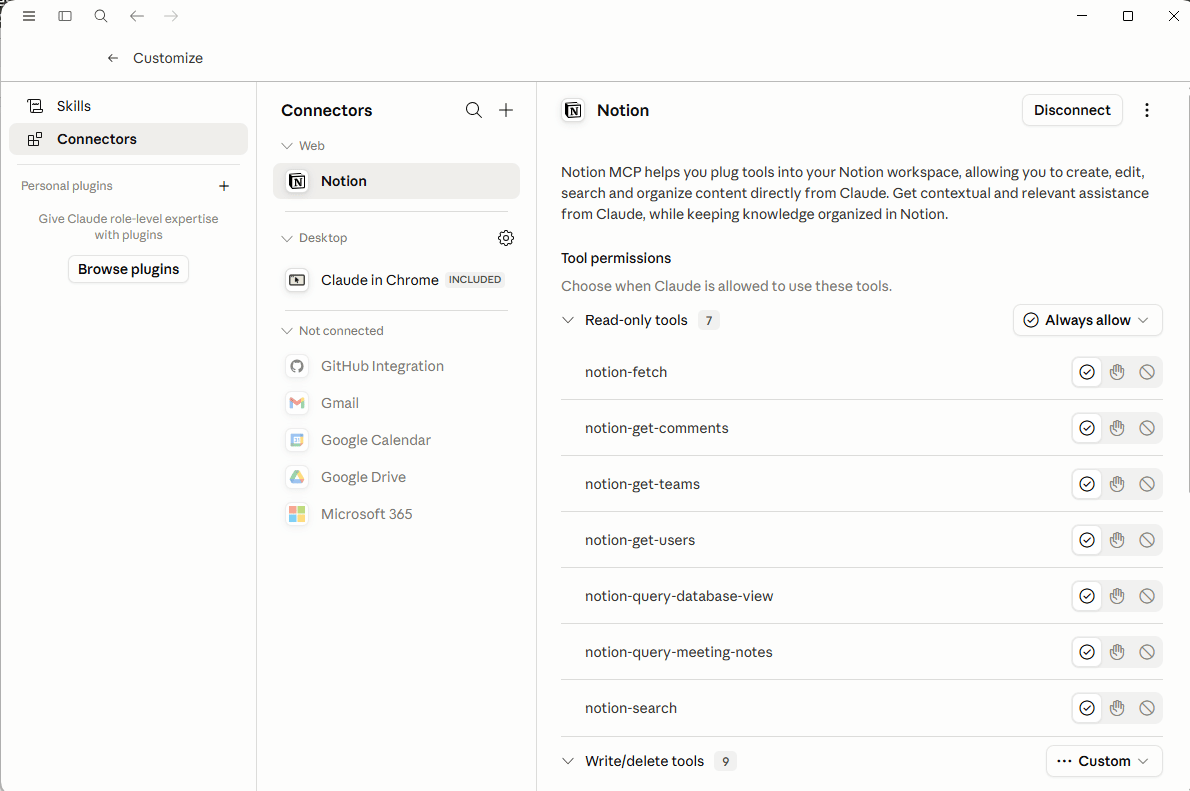
3
Add Fast Party as a custom connector
Click the + icon at the top of the Connectors panel, then select Add custom connector.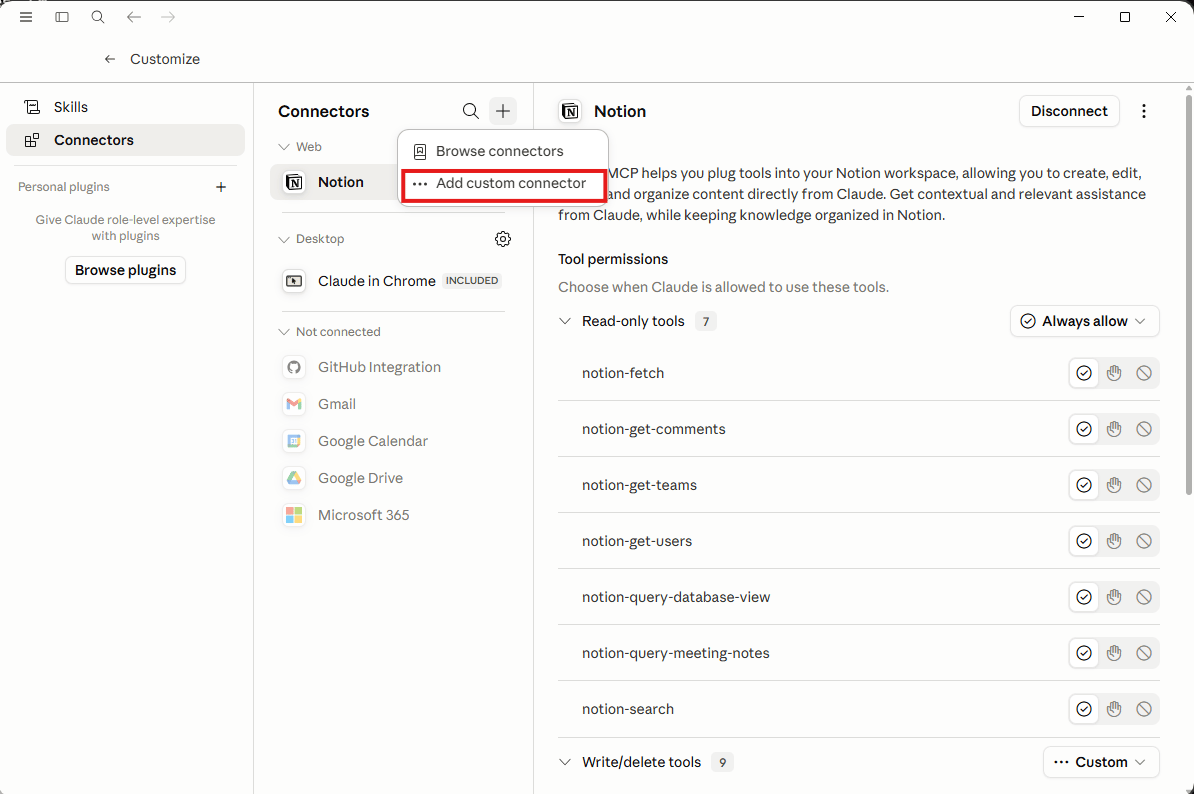
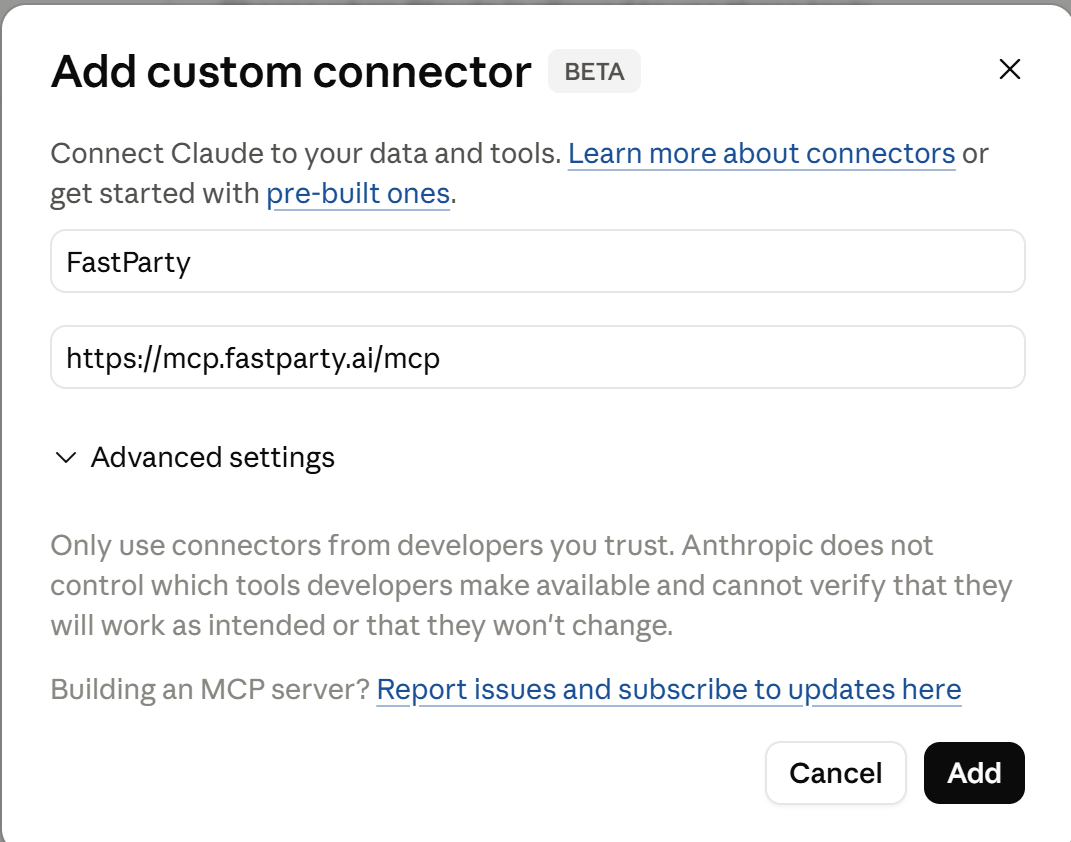
- Name:
Fast Party - URL:
https://mcp.fastparty.ai/mcp
4
Click Connect
Fast Party will appear in your Connectors list tagged as CUSTOM. Click Connect on the Fast Party listing.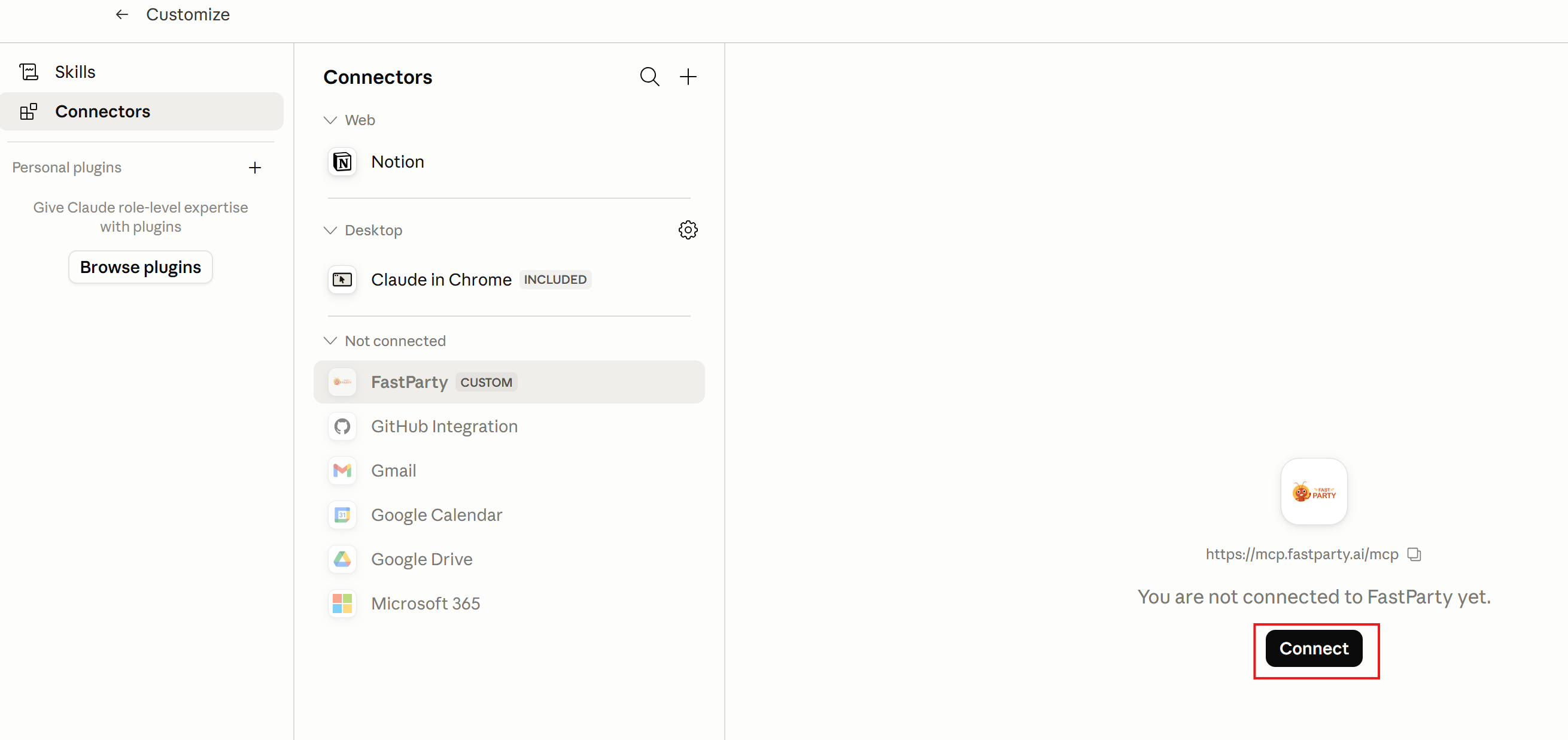
5
Sign in to Fast Party
A Fast Party sign-in window will open. Log in with your Fast Party account — using Google, Microsoft, phone number, or email. If you don’t have an account yet, you can sign up for free at app.fastparty.ai.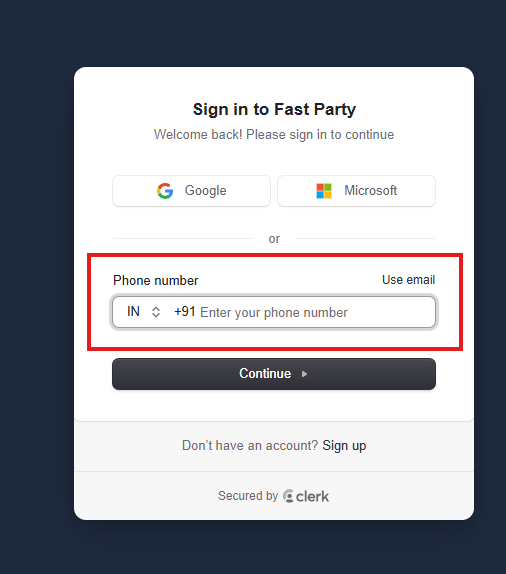
6
Authorise the connection
After signing in, you’ll see a confirmation that Fast Party is connected. Click Open Claude to return to the app.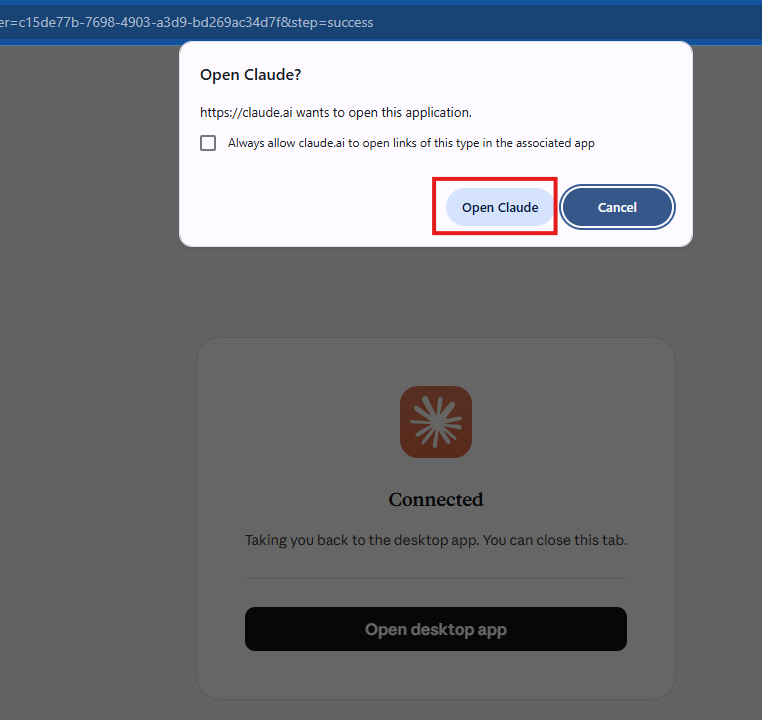
7
You're connected
Fast Party is now active in Claude. You’ll see it listed under Connectors with its full set of tools. To confirm it’s working, ask Claude: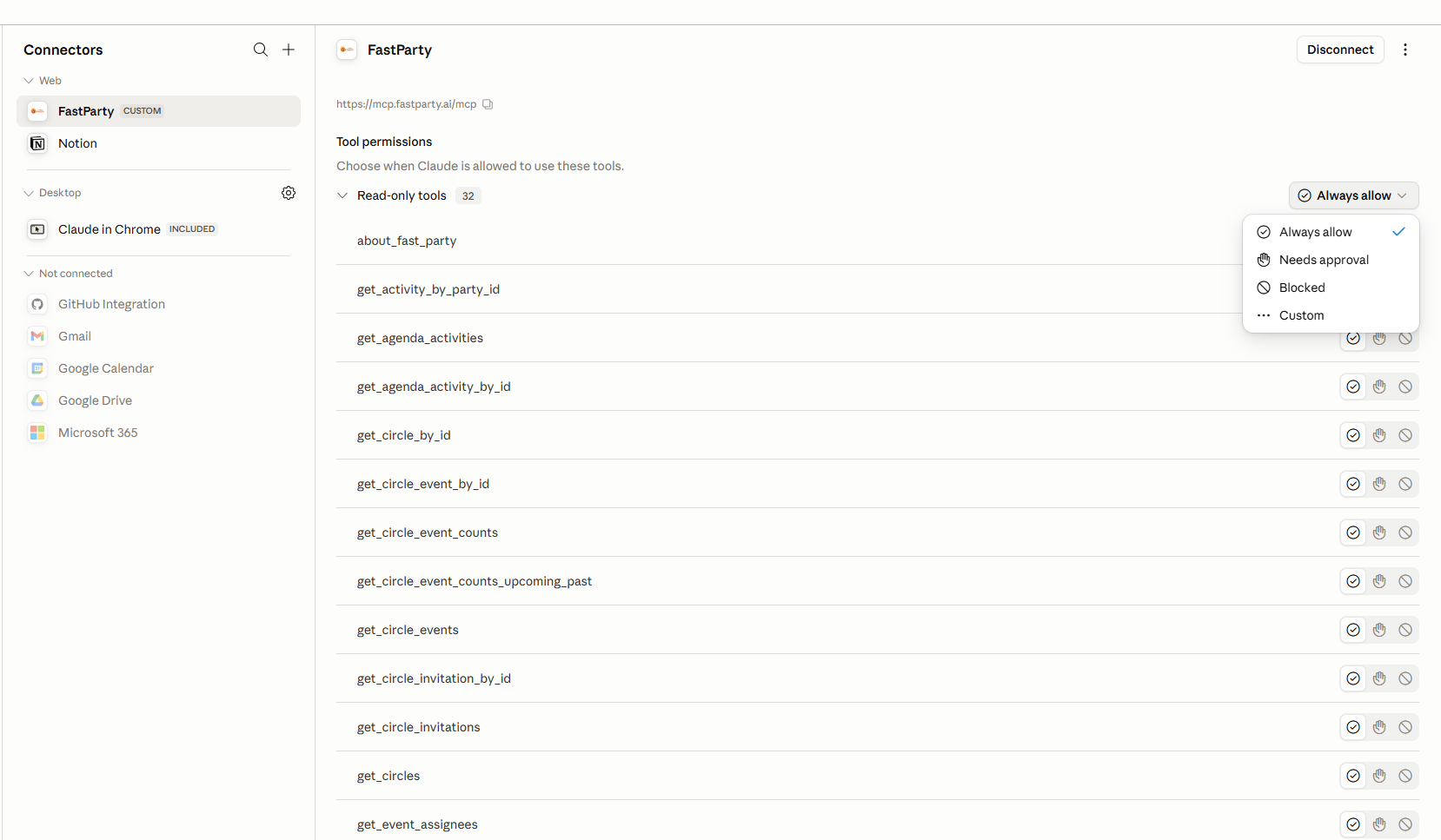
“What Fast Party tools do you have access to?”Claude will list all the actions it can take on your behalf.
What permissions are requested?
When you connect Fast Party to Claude, you’re giving Claude the ability to:- Create and update your events
- Add guests and send invitations
- View RSVP statuses
- Set up agendas, tasks, food preferences, and potlucks
- Create and manage guest circles