

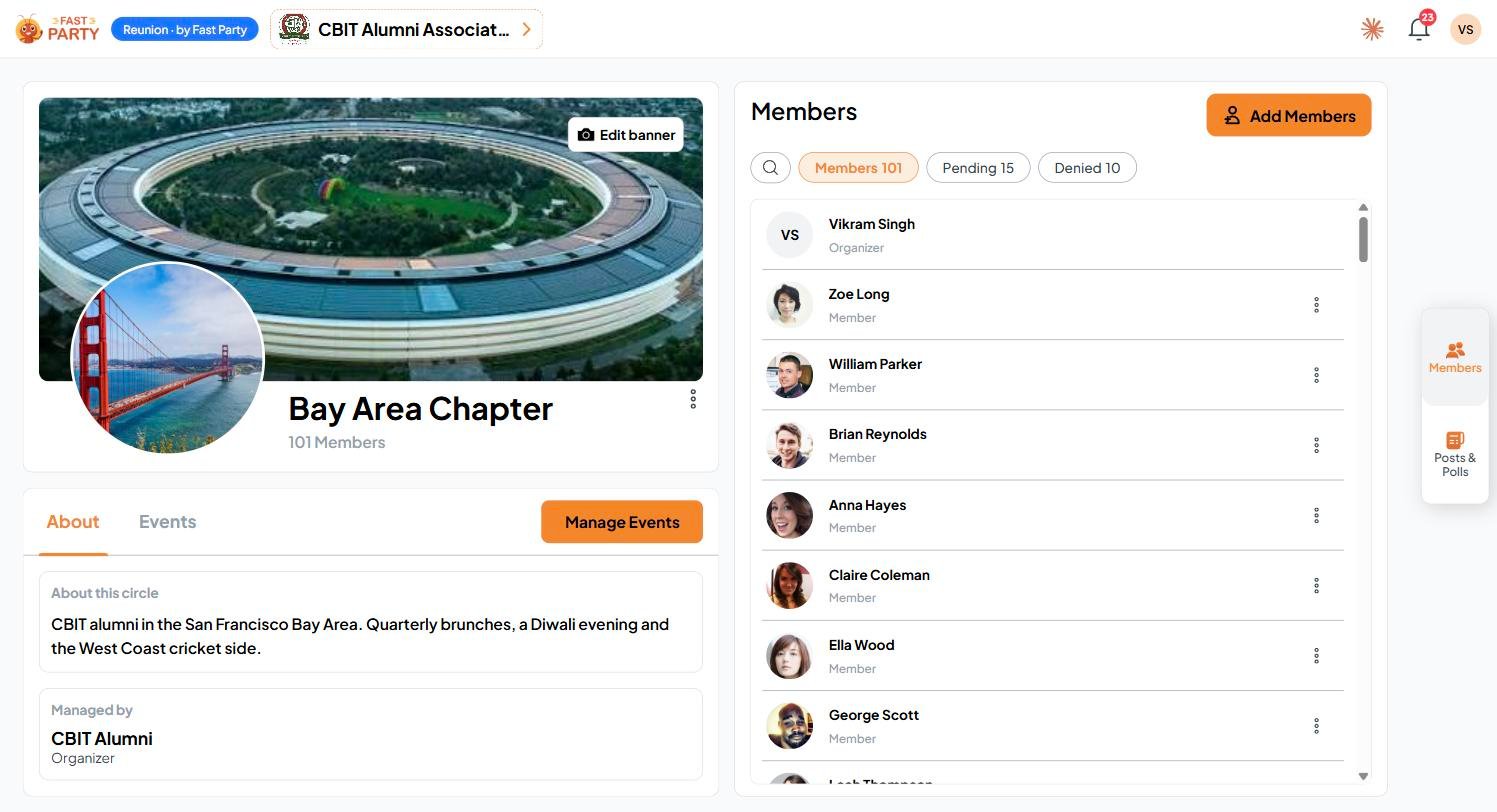
Create a circle
Name it, describe it, add a banner and invite your people.
Members
Who has joined, who’s pending, and who runs the circle.
Events in a circle
Create events for the whole circle and make them live.
Posts, polls and surveys
Keep the group talking between events.
Personal and organization circles
This section covers what every circle does. For circles inside an organization, see Circles and events in your organization.
Find your circles
Every circle you belong to is under My Circles on your Home page. Click View all to see them all, and use Find a circle to search.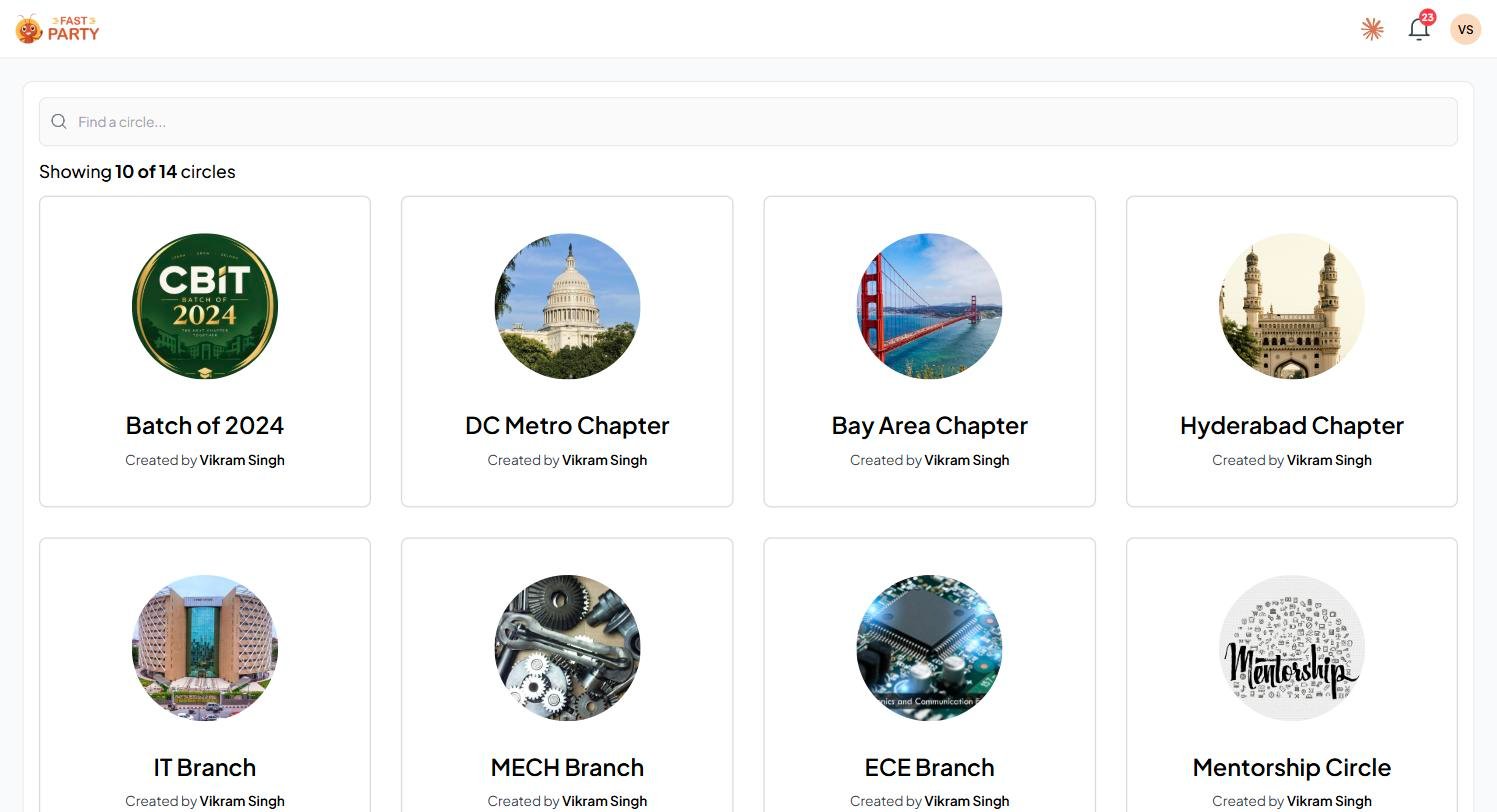
Inside a circle
Switch between Members and Posts & Polls with the buttons on the right edge of the page.
The ⋮ menu next to the circle’s name has Edit Circle, Settings, Delete Circle and Exit Circle.
Common questions
Is a circle free?
Is a circle free?
Yes. Personal circles are free to create, and inviting members costs nothing. Organizations, with many circles under one roster and brand, are part of our paid plans.
Does everyone in my circle need the app?
Does everyone in my circle need the app?
No. Members can join, RSVP, register and use every event tool from a link on the web. The app is there for those who want it.
Can members see who else is in the circle?
Can members see who else is in the circle?
Yes, unless you turn on Hide Member List when you create the circle.
Can I run a paid event in a circle?
Can I run a paid event in a circle?
Yes. Create a Registration Event in the circle and set a price. Payments go straight to your own account.
I manage a small group. Is a circle still useful?
I manage a small group. Is a circle still useful?
If you plan anything together more than once, yes. The second event takes minutes because everyone is already there.