A Regular Event in Fast Party gives you full control of the guest list. You control the guest list — invited guests receive a personal link and RSVP directly. No registration queue, no approval flow.
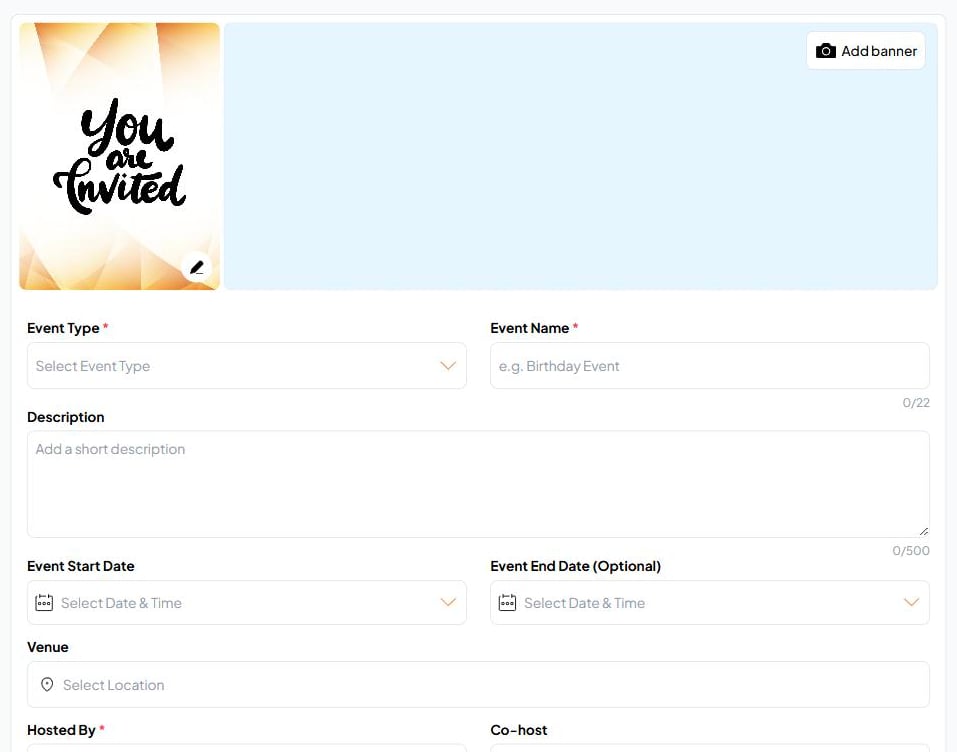
Creating a Regular Event screenshot

Creating an event

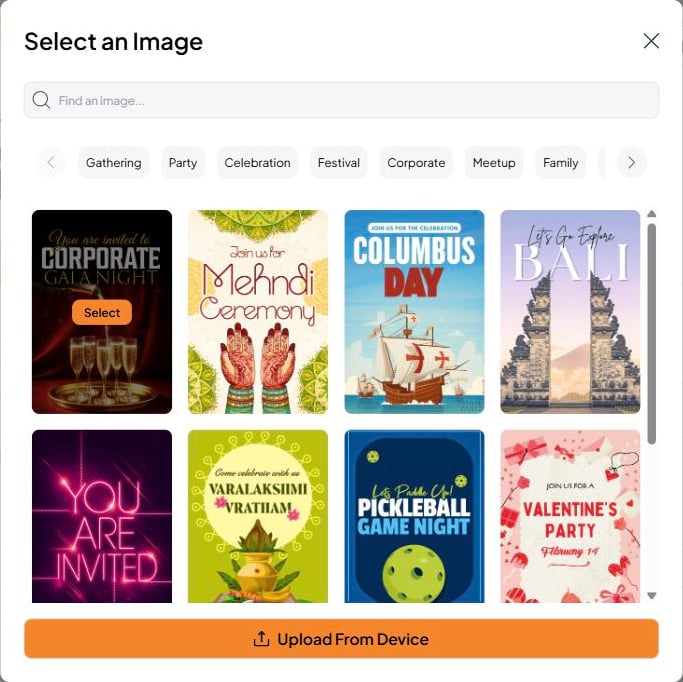
Click New Event from your dashboard and choose Regular Event as the event type. Fill in the required fields to get started — you can always edit it later. Event Image Use an image that suits your event from a gallery of templates available in the platform, or upload your own to better describe your event. Event Type Required. Select Regular for a regular event. Event Name Required. Give it a name your guests will recognize. Description Optional. Provide a description of the event you are hosting. Event Start Date Required. When the event begins. You can set it to TBD (To Be Decided) if you are not sure yet. Event End Date Optional. When the event ends. You can set it to TBD if you are not sure. The event can also span multiple days, with a schedule spread across them. Venue Optional. An address, venue name, or “TBD.” Fast Party will look up Google Maps and try to find the location. You can also provide additional details such as a landmark, floor number, or any instructions for guests arriving at the venue. Hosted By Required. Defaults to your name as the host — the creator of the event. You can edit this to show an organization name or someone else’s name if you are hosting on their behalf. This is visible to guests and indicates who is hosting the event. Add Links Optional. Add buttons with any links that will be helpful for guests attending the event — such as directions, a dress code page, or a dedicated event website. Click Save to save your event information.

Editing an event

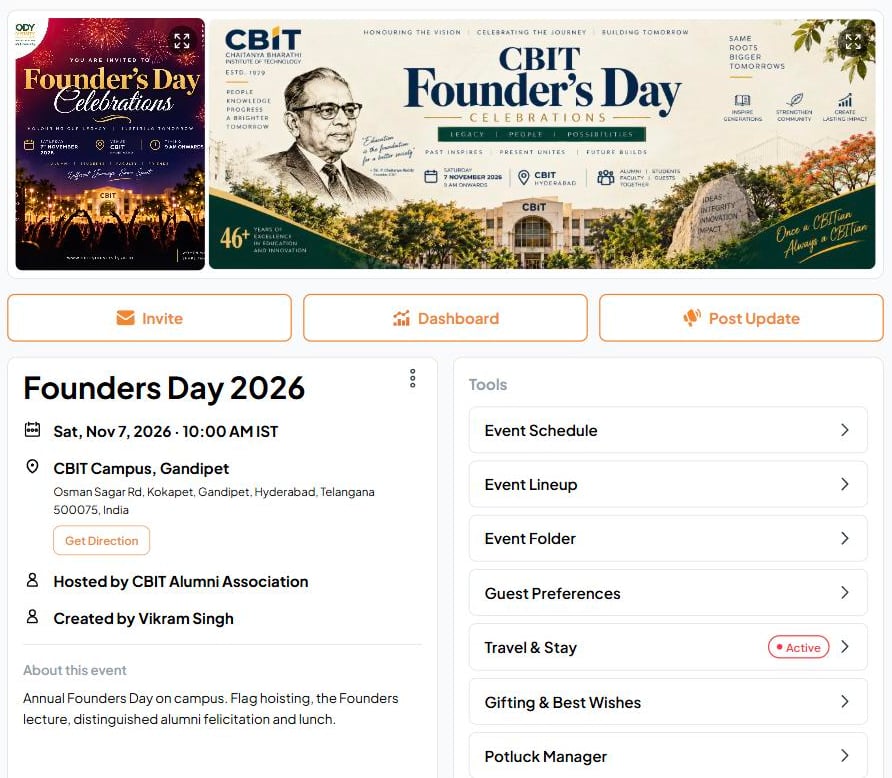
Editing a Regular Event screenshot
All event fields can be edited at any time from the event settings page. If you change the date or time after invitations have already been sent, Fast Party will offer to notify your guests of the update.

Deleting an event

To delete an event, open ellipsis on the right top corner of the event page and select Delete event. If guests have already received invitations, they’ll be notified that the event has been cancelled.
Deleting a Regular Event screenshot
Deleting an event is permanent. All guest data, agendas, tasks, and potluck information for that event will be removed.