

The two images
Event template
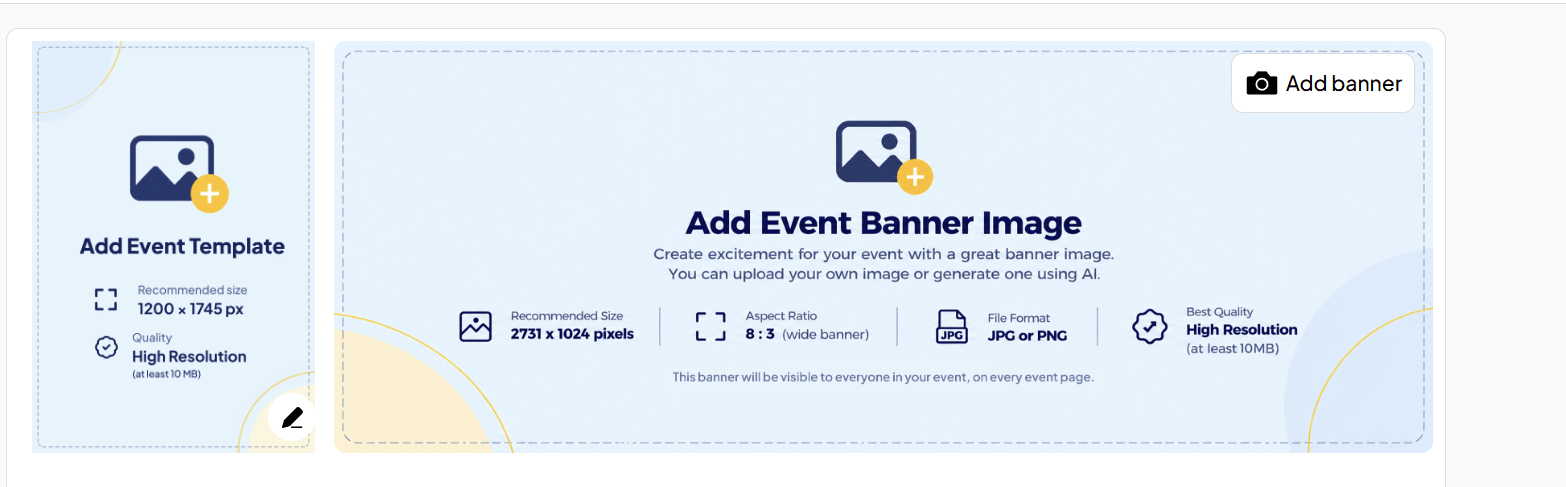
A tall, portrait image: your invitation card. It’s what guests see first when you share the event, and what they forward to others.
Event banner
A wide image across the top of the event. It’s visible to everyone in your event, on every event page.
Sizes to use
Use these sizes so your images look sharp and nothing important gets cropped.Add an event template
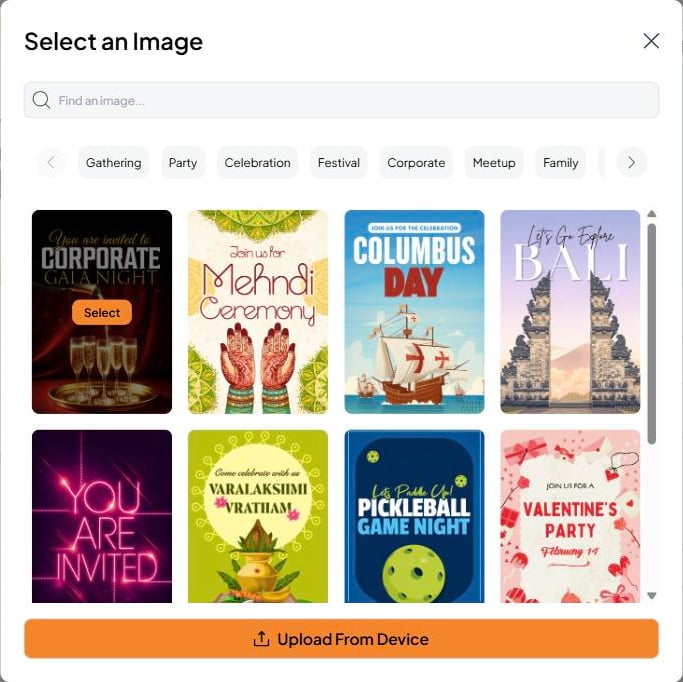
Click the pencil on the event template, when you create the event or any time after. You can:- Pick one from our template store. Search, or browse by category: Gathering, Party, Celebration, Festival, Corporate, Meetup, Family, Night, Outdoors and Kids. You can also browse the full collection on the website’s Celebration Hub.
- Upload From Device to use your own design.
Multi-day events: a template for each day
Every event can be a multi-day event, whether it’s an RSVP Event, a Registration Event or an Open Event. Each day can have its own invitation template, up to 5 templates per event, from the store, your own designs, or a mix. That’s ideal for a wedding with a Mehendi, Sangeet and reception, a three-day festival, or a conference with a different theme each day: guests get a card that matches the day they’re invited to.Add a banner
On the Event Page, click Add banner in the top-right corner of the banner area. You can:- Upload your own image
- Generate one with AI right in Fast Party
Tips for great event images
- Use the recommended sizes. Smaller images look blurry on large screens, and other shapes get cropped.
- Match the occasion. A reunion, a club night and a wedding should each feel like themselves at a glance.
- Add both. The template is what gets shared, and the banner is what greets people once they arrive on your event.