

For running the event. Worth turning on when you’re not doing this alone. All event tools →
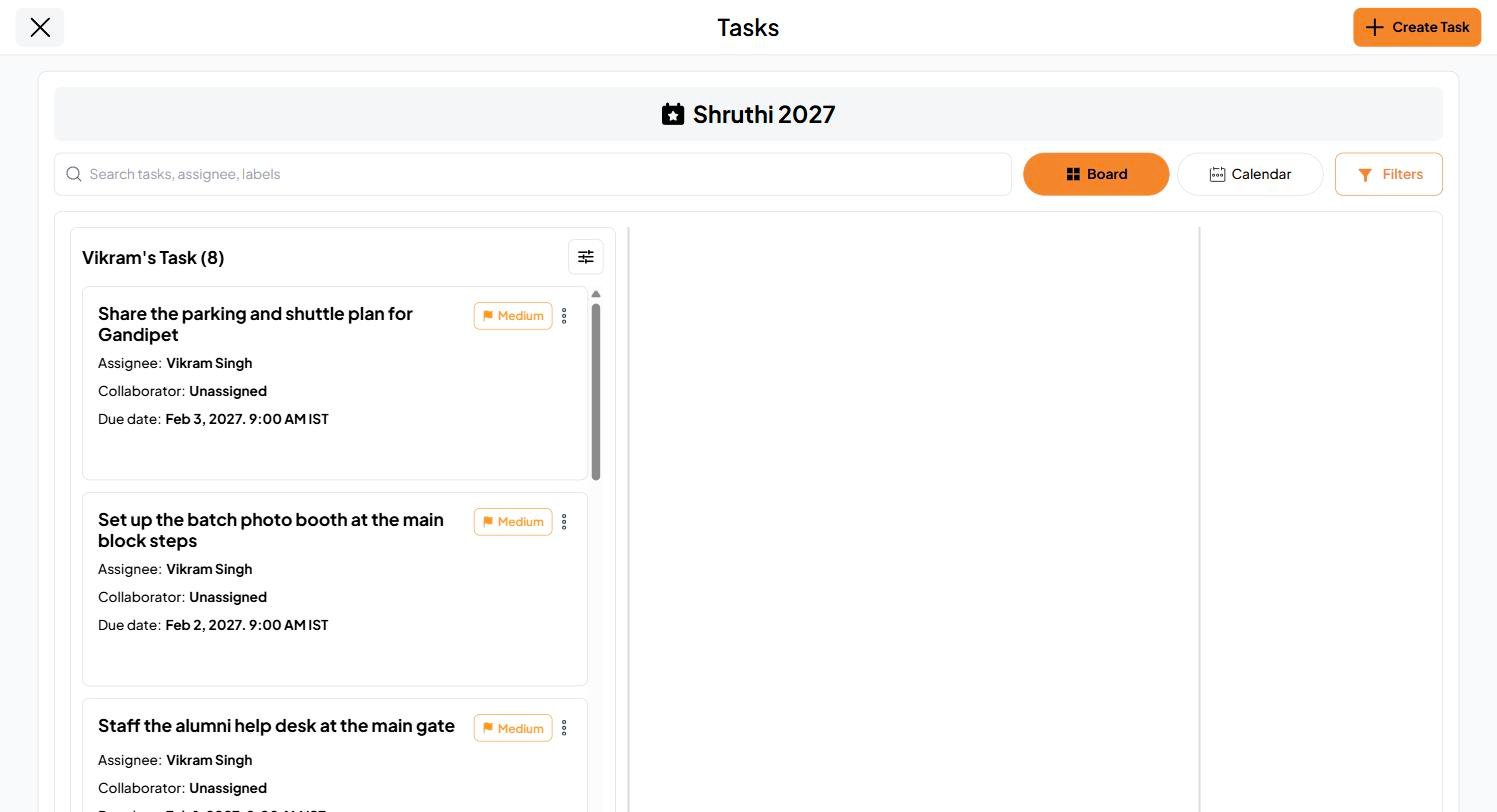
Create a task
Open Tasks from the Event Page and click Create Task.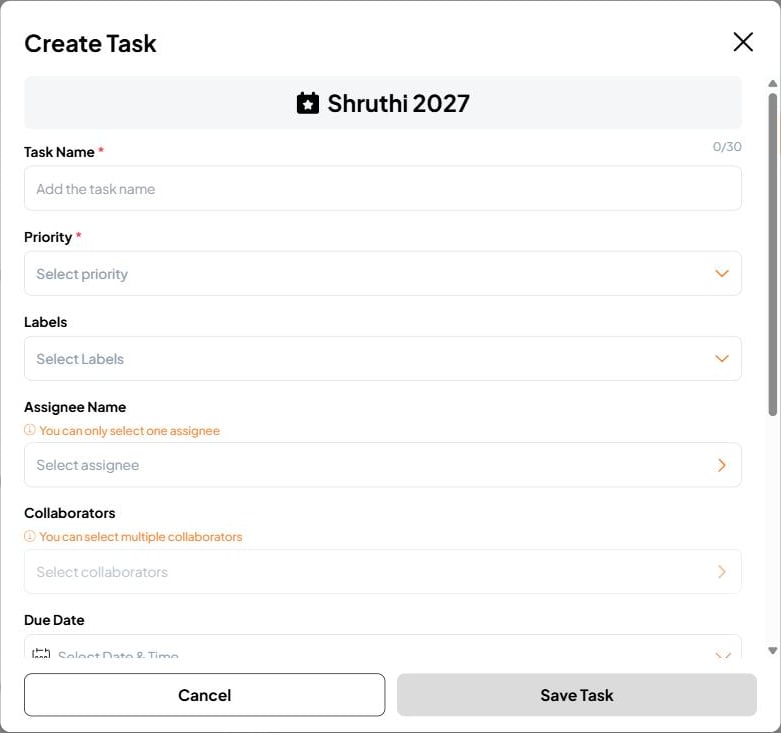
Who you can assign
Assign tasks to hosts, co-hosts and guests. They’re notified with the task and its due date, and a guest sees only the tasks assigned to them, never your whole list. A collaborator can also be someone outside the event, such as a driver or a decorator, who needs to see and act on one task only. They don’t join the guest list and can’t see anything else.See what’s left
- Board shows task cards, grouped by who they’re assigned to.
- Calendar shows tasks on their due dates.
- Search by task, assignee or label, and use Filters to focus on what matters now.