For guests to read. Worth turning on when there’s something guests need to read beforehand. All event tools → Uploading is not sharing. A document stays private to you until you share it, and this is the most common reason guests say they can’t find something.
Uploading files
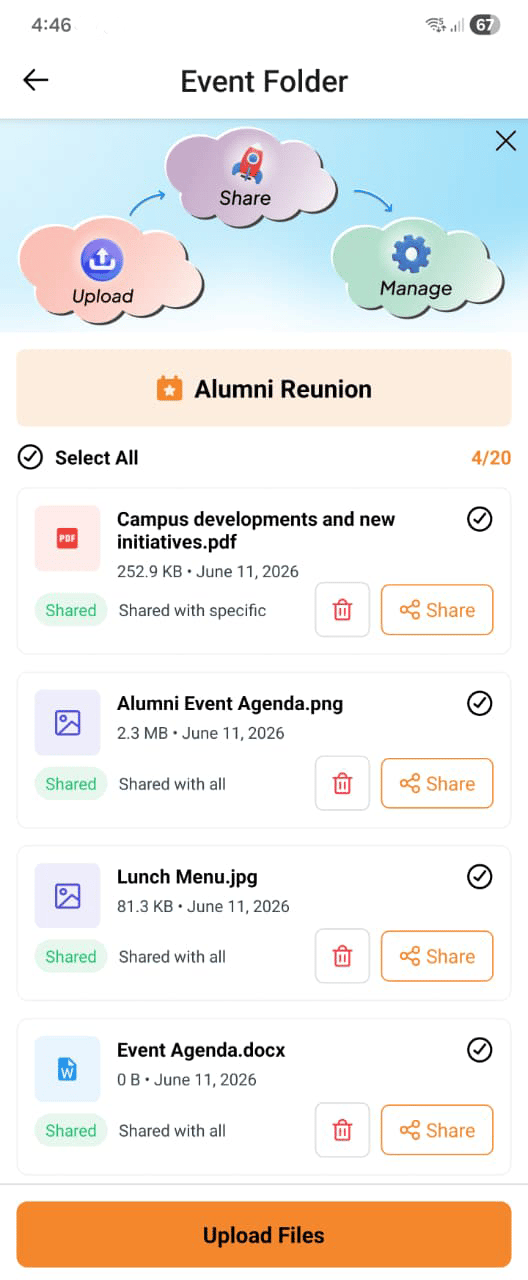
Open your event and go to the Event Folder tab. Tap Upload and select a file from your device.
Supported file types include:
- PDF documents
- Images (JPEG, PNG, and other common formats)
- Other common document types
Controlling visibility
When you upload a file, you choose who can see it:
You can change visibility after uploading. For example, share a briefing document with co-hosts first, then open it to all guests when you’re ready.
Sharing with specific guests
Upload the file
Go to Event Folder and tap Upload.
Choose Specific guests
Select the visibility option and search for the guests you want to share with.
Save
Those guests can view and download the file from their invitation view.
Your private notes
Event Folder also has notes for you: running notes to jot down what’s still to sort out. Your notes are never shared with guests.
Deleting documents
To remove a file, tap the delete option next to it in the Event Folder. Deleted files are immediately removed and guests can no longer access them.
Deleting a file from the Event Folder is permanent. Make sure you no longer need the file before removing it.
Use the Event Folder to share documents that are useful before the event — directions, parking info, a dress code PDF, or a map of the venue — without cluttering the event description.