> ## Documentation Index
> Fetch the complete documentation index at: https://docs.fastparty.ai/llms.txt
> Use this file to discover all available pages before exploring further.
# Manage Recurring Events via My Circles
> Use Circles to organise named groups and run recurring events with the same people.
Circles are named groups of people in Fast Party. Create a Circle once and you can run recurring events for the same group — family dinners, monthly team lunches, book clubs — without re-entering names and contacts every time.
 ## What is a Circle?
A Circle is a saved group — for example:
* **Family** — immediate and extended family
* **Work Team** — your colleagues
* **Book Club** — your reading group
* **Neighbours** — people in your building or street
Once created, a Circle is available to use across all your events.
## Creating a Circle
Go to **Circles** in your account and click **New Circle**.
Give it a clear name your members will recognise.
Upload a photo or banner to make the Circle easy to identify.
Optional — describe the group's purpose.
Enter member names and email addresses.
Your Circle is ready to use.
You can add or remove members at any time. Changes to a Circle don't affect guests already added to past events.
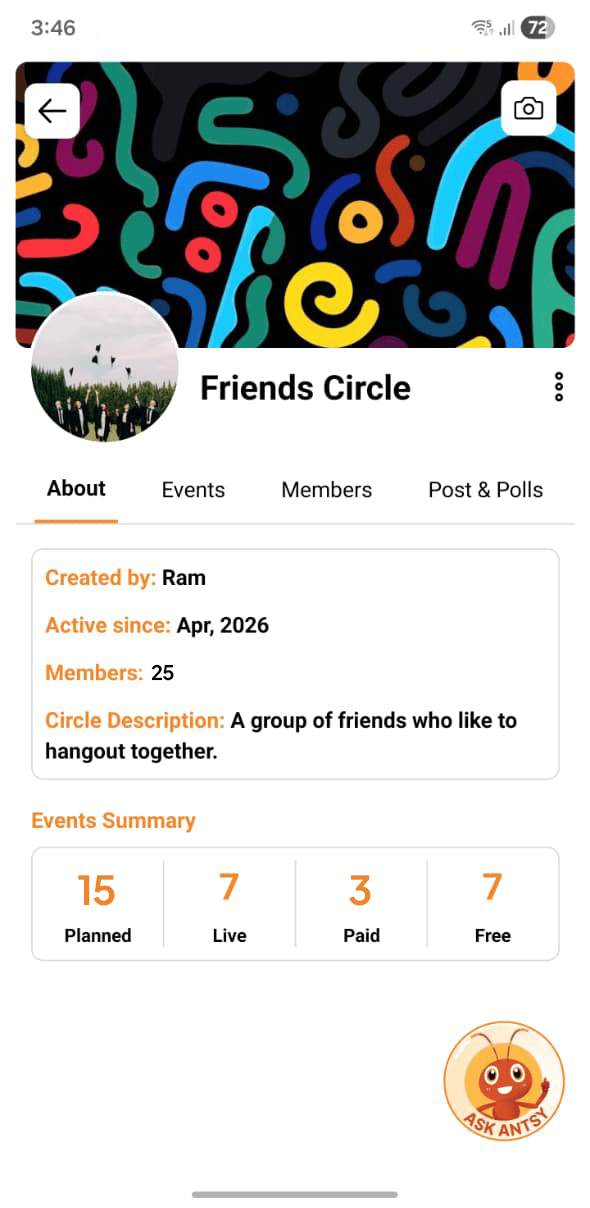
## Circle tabs
Each Circle has four tabs:
| Tab | What's here |
| ----------------- | -------------------------------------------------- |
| **About** | The Circle description, member count, and settings |
| **Events** | Events created within or linked to this Circle |
| **Members** | The full member list with management options |
| **Posts & Polls** | Posts and polls shared within the Circle |
## Creating events within a Circle
From the **Events** tab of a Circle, create a new event directly. That event is automatically linked to the Circle — and you can add all Circle members to the guest list in one click.
## Posts & Polls
Within a Circle, members can post updates and create polls. This is useful for coordinating between recurring events — sharing news, voting on a date, or gathering opinions — without needing to create a full event.
Posts support text and media. Polls let you set options and collect responses from all Circle members.
## Adding Circle members to an event
When adding guests to any event, click **Add from Circle** and select the Circle you want. All members are added at once.
If you need to exclude a specific person, remove them from the event guest list after adding the Circle — the Circle itself is unchanged.
## Searching for and joining Circles
Browse and search for public Circles from the **Circles** page. Use the search bar to find Circles by name or topic. If a Circle is open, you can request to join or self-join directly from the search results.
## Managing your Circles
From **Account → Circles** you can:
* Edit the member list
* Rename a Circle
* Update the cover image
* Delete a Circle (this doesn't affect any events the Circle has already been used for)
## What is a Circle?
A Circle is a saved group — for example:
* **Family** — immediate and extended family
* **Work Team** — your colleagues
* **Book Club** — your reading group
* **Neighbours** — people in your building or street
Once created, a Circle is available to use across all your events.
## Creating a Circle
Go to **Circles** in your account and click **New Circle**.
Give it a clear name your members will recognise.
Upload a photo or banner to make the Circle easy to identify.
Optional — describe the group's purpose.
Enter member names and email addresses.
Your Circle is ready to use.
You can add or remove members at any time. Changes to a Circle don't affect guests already added to past events.
## Circle tabs
Each Circle has four tabs:
| Tab | What's here |
| ----------------- | -------------------------------------------------- |
| **About** | The Circle description, member count, and settings |
| **Events** | Events created within or linked to this Circle |
| **Members** | The full member list with management options |
| **Posts & Polls** | Posts and polls shared within the Circle |
## Creating events within a Circle
From the **Events** tab of a Circle, create a new event directly. That event is automatically linked to the Circle — and you can add all Circle members to the guest list in one click.
## Posts & Polls
Within a Circle, members can post updates and create polls. This is useful for coordinating between recurring events — sharing news, voting on a date, or gathering opinions — without needing to create a full event.
Posts support text and media. Polls let you set options and collect responses from all Circle members.
## Adding Circle members to an event
When adding guests to any event, click **Add from Circle** and select the Circle you want. All members are added at once.
If you need to exclude a specific person, remove them from the event guest list after adding the Circle — the Circle itself is unchanged.
## Searching for and joining Circles
Browse and search for public Circles from the **Circles** page. Use the search bar to find Circles by name or topic. If a Circle is open, you can request to join or self-join directly from the search results.
## Managing your Circles
From **Account → Circles** you can:
* Edit the member list
* Rename a Circle
* Update the cover image
* Delete a Circle (this doesn't affect any events the Circle has already been used for)