> ## Documentation Index
> Fetch the complete documentation index at: https://docs.fastparty.ai/llms.txt
> Use this file to discover all available pages before exploring further.
# Registration Setup and Management
> Set up registration and tiers, then review, approve and track your attendees from the Registration page.
On a Registration Event's Event Page, click **Registration**. This is the control center: how people register, your tiers, and every attendee as they sign up.
 ## Overview at a glance
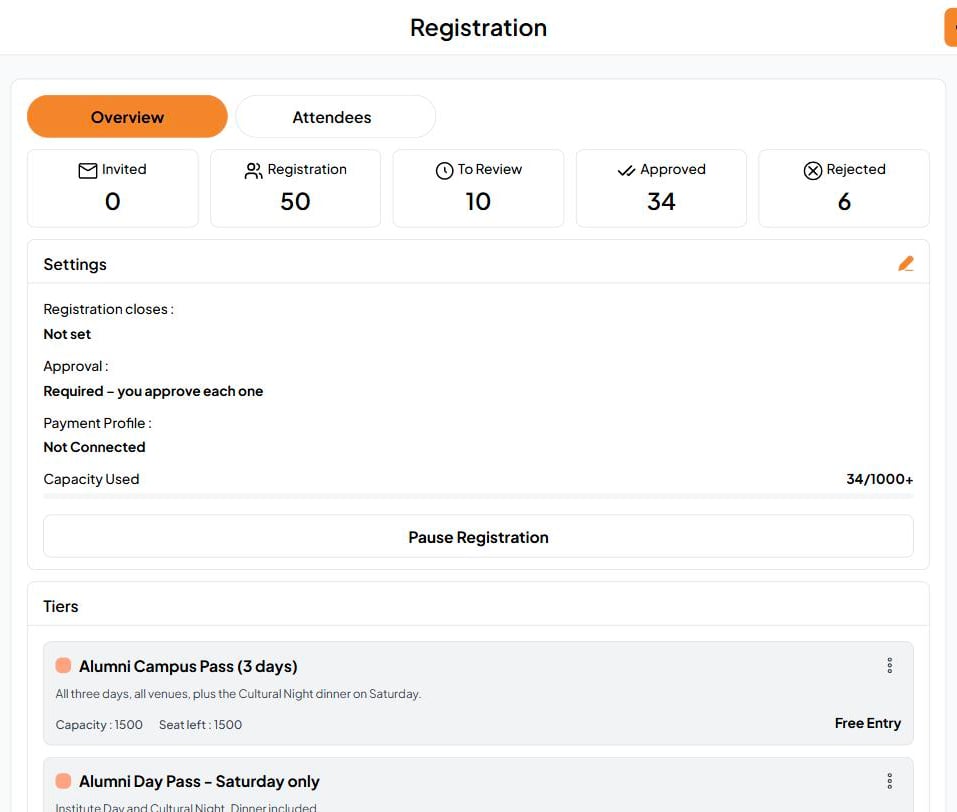
The top row counts every registration:
| Count | What it means |
| - | - |
| **Invited** | People you added yourself with **Add Attendees** |
| **Registration** | Everyone who has registered |
| **To Review** | Waiting for your approval |
| **Approved** | Confirmed |
| **Rejected** | Declined |
Below it, **Settings** shows when registration closes, whether approval is required, your payment profile, and how much of your capacity is used. **Pause Registration** stops new sign-ups until you resume.
## Set up registration
Click the pencil on **Settings** to open **Set Up**. Finish this before you share the event: it can't be shared until registration setup is done.
## Overview at a glance
The top row counts every registration:
| Count | What it means |
| - | - |
| **Invited** | People you added yourself with **Add Attendees** |
| **Registration** | Everyone who has registered |
| **To Review** | Waiting for your approval |
| **Approved** | Confirmed |
| **Rejected** | Declined |
Below it, **Settings** shows when registration closes, whether approval is required, your payment profile, and how much of your capacity is used. **Pause Registration** stops new sign-ups until you resume.
## Set up registration
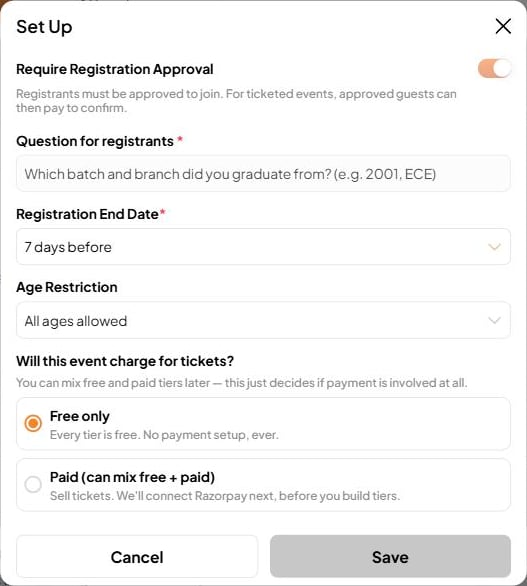
Click the pencil on **Settings** to open **Set Up**. Finish this before you share the event: it can't be shared until registration setup is done.
 | Setting | What it does |
| - | - |
| **Require Registration Approval** | On: you approve each registrant, and for paid events they pay after you approve. Off: people are confirmed as soon as they register. |
| **Question for registrants** | Required when approval is on. Ask what you need to decide, such as "Which batch and branch did you graduate from?" |
| **Registration End Date** | When sign-ups close, relative to the event, such as 7 days before. |
| **Age Restriction** | All ages, or limit the event to adults. |
| **Will this event charge for tickets?** | **Free only:** every tier is free, with no payment setup. **Paid:** sell tickets, mixing free and paid tiers. You connect your Razorpay account before building tiers. |
Ticket revenue goes straight to your own account. Fast Party never holds the money. Organizations set up payments once in [organization setup](/organizations/setup#payments).
## Tiers
Tiers are your ticket types, such as a 3-day pass, a single-day pass and a family pass. Click **Add New Tier**:
| Field | Description |
| - | - |
| **Label Name** | Required, up to 20 characters. The name attendees see. |
| **Badge Colour** | Required. Used to spot this tier at a glance on the dashboard and at check-in. |
| **Capacity** | Required. How many places this tier has. |
| **Price** | For paid events. |
| **Notes** | Optional. What's included, such as "Dinner included". |
Each tier shows its capacity and seats left.
## Bring people in
* **Share Invite:** share the registration link on WhatsApp, email, your website or social media.
* **Add Attendees:** add people yourself.
## Review attendees
Open the **Attendees** tab. Filter by Invited, Registration, To Review, Approved or Rejected, and see **where they came from**: the link, or your own invitation.
| Setting | What it does |
| - | - |
| **Require Registration Approval** | On: you approve each registrant, and for paid events they pay after you approve. Off: people are confirmed as soon as they register. |
| **Question for registrants** | Required when approval is on. Ask what you need to decide, such as "Which batch and branch did you graduate from?" |
| **Registration End Date** | When sign-ups close, relative to the event, such as 7 days before. |
| **Age Restriction** | All ages, or limit the event to adults. |
| **Will this event charge for tickets?** | **Free only:** every tier is free, with no payment setup. **Paid:** sell tickets, mixing free and paid tiers. You connect your Razorpay account before building tiers. |
Ticket revenue goes straight to your own account. Fast Party never holds the money. Organizations set up payments once in [organization setup](/organizations/setup#payments).
## Tiers
Tiers are your ticket types, such as a 3-day pass, a single-day pass and a family pass. Click **Add New Tier**:
| Field | Description |
| - | - |
| **Label Name** | Required, up to 20 characters. The name attendees see. |
| **Badge Colour** | Required. Used to spot this tier at a glance on the dashboard and at check-in. |
| **Capacity** | Required. How many places this tier has. |
| **Price** | For paid events. |
| **Notes** | Optional. What's included, such as "Dinner included". |
Each tier shows its capacity and seats left.
## Bring people in
* **Share Invite:** share the registration link on WhatsApp, email, your website or social media.
* **Add Attendees:** add people yourself.
## Review attendees
Open the **Attendees** tab. Filter by Invited, Registration, To Review, Approved or Rejected, and see **where they came from**: the link, or your own invitation.
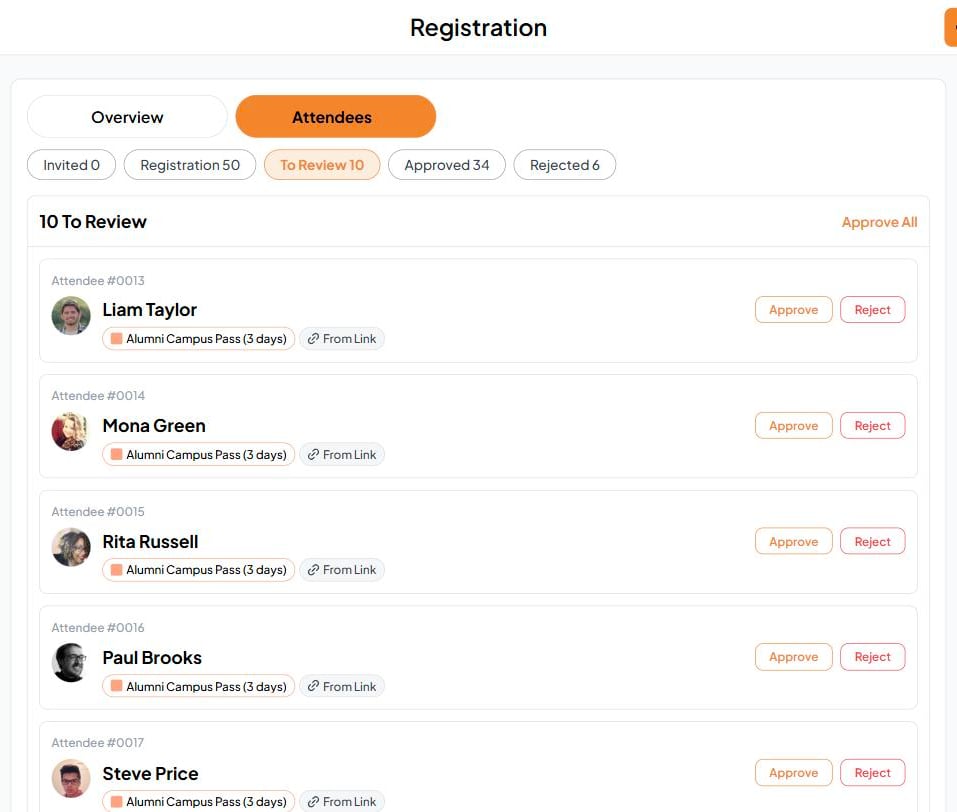 * **Approve** or **Reject** each person. They're notified either way, and approved attendees get their ticket.
* **Approve All** confirms everyone waiting at once.
* Each attendee shows their number, tier and status.
Every confirmed attendee gets a ticket with a QR code for the door. See [Attendee Check-In](/public-events/registrant-check-in).
Let [your connected AI](/platforms#connect-your-ai) do the review: "Approve every pending registration for Shruthi 2027 from the 2001 batch."
This documentation is built and hosted on [Mintlify](https://mintlify.com), a developer documentation platform.
* **Approve** or **Reject** each person. They're notified either way, and approved attendees get their ticket.
* **Approve All** confirms everyone waiting at once.
* Each attendee shows their number, tier and status.
Every confirmed attendee gets a ticket with a QR code for the door. See [Attendee Check-In](/public-events/registrant-check-in).
Let [your connected AI](/platforms#connect-your-ai) do the review: "Approve every pending registration for Shruthi 2027 from the 2001 batch."
This documentation is built and hosted on [Mintlify](https://mintlify.com), a developer documentation platform.