> ## Documentation Index
> Fetch the complete documentation index at: https://docs.fastparty.ai/llms.txt
> Use this file to discover all available pages before exploring further.
# Guests & RSVPs
> Invite guests to your regular event and track who's coming.
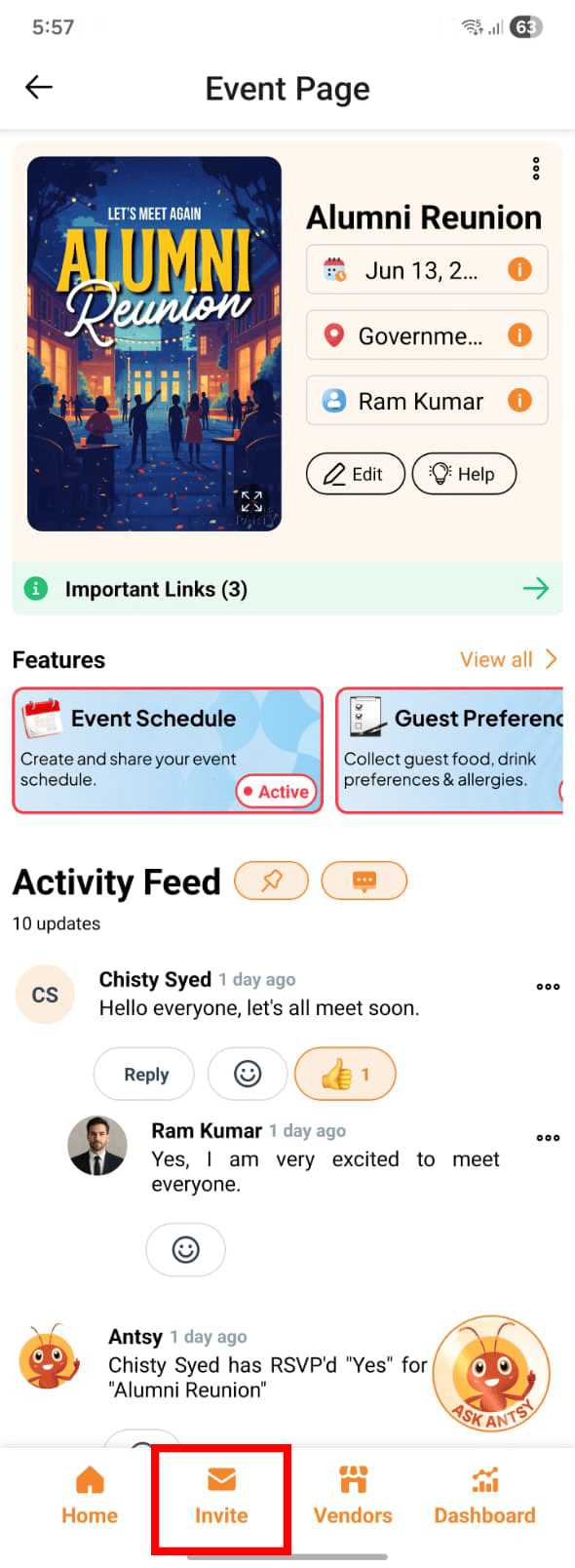
Invite guests to your regular event and track who's coming. On the event page, click on the **Invite** icon available on the bottom nav bar of the event page.
 Fast Party makes it easy to invite guests, send them everything they need, and track their responses in real time.
## Invite Guests
Guests can be invited to RSVP to the event via phone number or by email.
### Via Mobile App
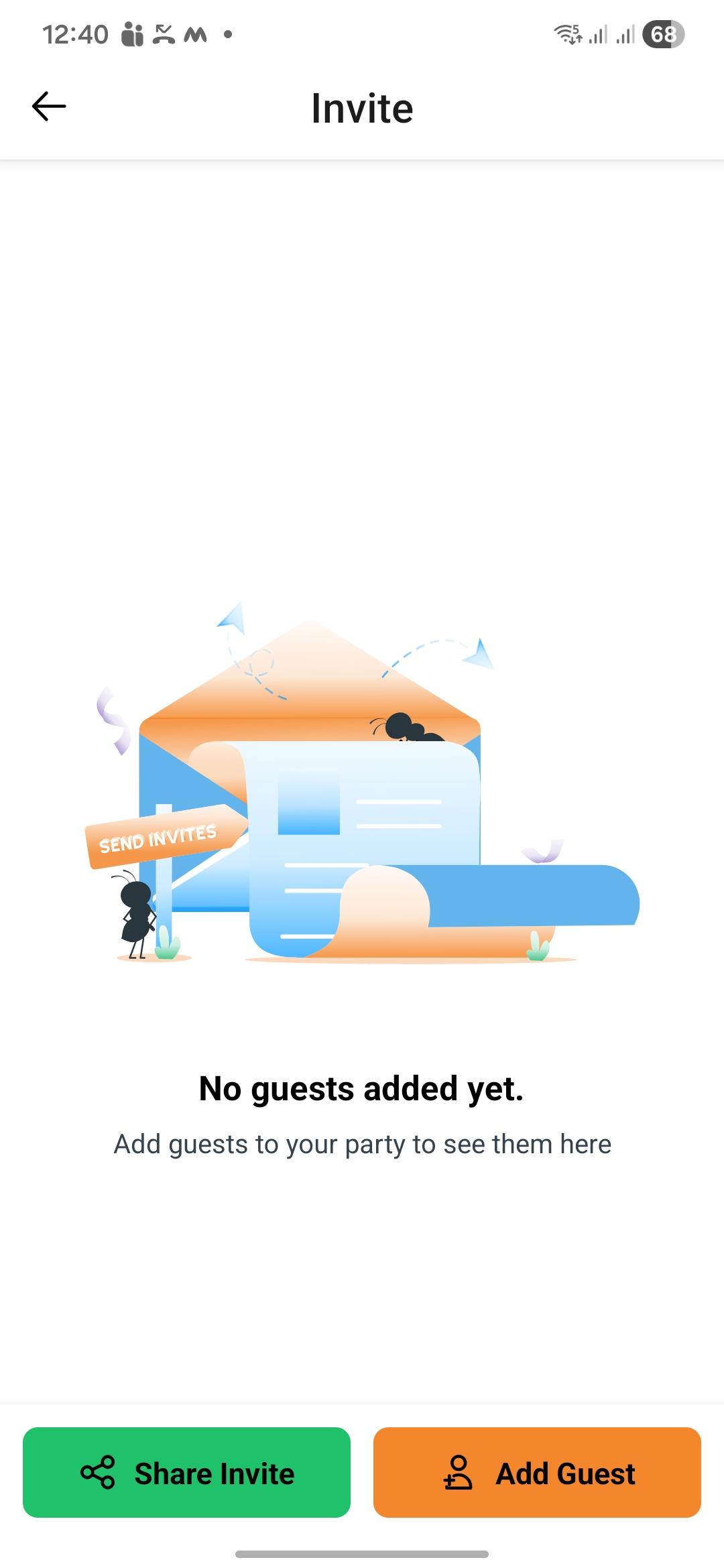
* **Share invite link** — share the event invite via WhatsApp, email, or any other channel directly from the app.
* **Add guest** — enter a guest's phone number or email address. You can also import contacts from your phone book, Google, or Microsoft Outlook and invite them directly.
### Via Web
All mobile options are available on web, plus one additional option:
* **CSV upload** — upload a spreadsheet with columns: FirstName, LastName, Email, Phone. A CSV template is available to download from the guests page.
## Guest Details & Settings
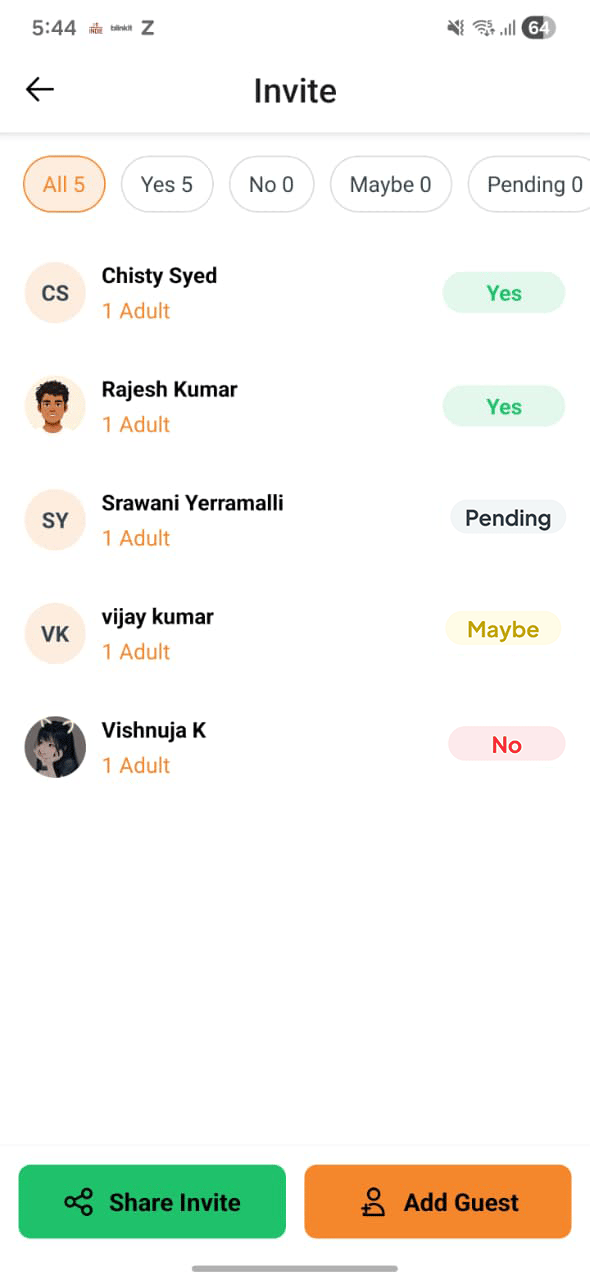
For each guest, as a host you can see the following on the RSVP page:
* First and Last Name
* RSVP status
* Whether they are a guest of the event or a Co-Host
To edit or remove a guest, swipe left on the guest name to reveal those options. When you click **Edit**, you can update their first and last name and also make them a Co-Host for the event.
You also have the option to **Block User** by clicking on the guest's avatar on the RSVP page.
Fast Party makes it easy to invite guests, send them everything they need, and track their responses in real time.
## Invite Guests
Guests can be invited to RSVP to the event via phone number or by email.
### Via Mobile App
* **Share invite link** — share the event invite via WhatsApp, email, or any other channel directly from the app.
* **Add guest** — enter a guest's phone number or email address. You can also import contacts from your phone book, Google, or Microsoft Outlook and invite them directly.
### Via Web
All mobile options are available on web, plus one additional option:
* **CSV upload** — upload a spreadsheet with columns: FirstName, LastName, Email, Phone. A CSV template is available to download from the guests page.
## Guest Details & Settings
For each guest, as a host you can see the following on the RSVP page:
* First and Last Name
* RSVP status
* Whether they are a guest of the event or a Co-Host
To edit or remove a guest, swipe left on the guest name to reveal those options. When you click **Edit**, you can update their first and last name and also make them a Co-Host for the event.
You also have the option to **Block User** by clicking on the guest's avatar on the RSVP page.
 ## Invite Notifications
When you add a guest, Fast Party sends them an invitation automatically — via **email** if invited by email, via **SMS** if invited by phone number, and via **WhatsApp** as well if WhatsApp is available on their phone. The message includes the event name, date, time, location, hosted by, and a personal RSVP link.
Guests do not need the Fast Party app to RSVP. They click the link in the email or SMS and are directed to an RSVP webpage where they can submit their response.
To view the Event Page on the platform — either via web or the app — the guest needs to register with Fast Party. Once registered, they will be taken directly to the Event Page.
## RSVP tracking
Each guest has one of four RSVP statuses:
| Status | Meaning |
| ----------- | -------------------------------- |
| **Pending** | Invitation sent, no response yet |
| **Yes** | Guest is coming |
| **No** | Guest can't make it |
| **Maybe** | Guest is unsure |
Your event dashboard shows a live RSVP count. You can filter the guest list by status and send a reminder to anyone who hasn't responded yet.
## Invite Notifications
When you add a guest, Fast Party sends them an invitation automatically — via **email** if invited by email, via **SMS** if invited by phone number, and via **WhatsApp** as well if WhatsApp is available on their phone. The message includes the event name, date, time, location, hosted by, and a personal RSVP link.
Guests do not need the Fast Party app to RSVP. They click the link in the email or SMS and are directed to an RSVP webpage where they can submit their response.
To view the Event Page on the platform — either via web or the app — the guest needs to register with Fast Party. Once registered, they will be taken directly to the Event Page.
## RSVP tracking
Each guest has one of four RSVP statuses:
| Status | Meaning |
| ----------- | -------------------------------- |
| **Pending** | Invitation sent, no response yet |
| **Yes** | Guest is coming |
| **No** | Guest can't make it |
| **Maybe** | Guest is unsure |
Your event dashboard shows a live RSVP count. You can filter the guest list by status and send a reminder to anyone who hasn't responded yet.