> ## Documentation Index
> Fetch the complete documentation index at: https://docs.fastparty.ai/llms.txt
> Use this file to discover all available pages before exploring further.
# Event Lineup
> Publish a directory of your speakers and performers, linked to your agenda, so guests know who's on and when.
Event Lineup puts the people at the heart of your event front and center. Whether it's keynote speakers and panelists at a conference, or the band, DJ, or artist at a private event, you can publish a directory of who's featured — each one linked to their slot on the agenda — so guests know who's on, when they're up, and why they shouldn't miss it.
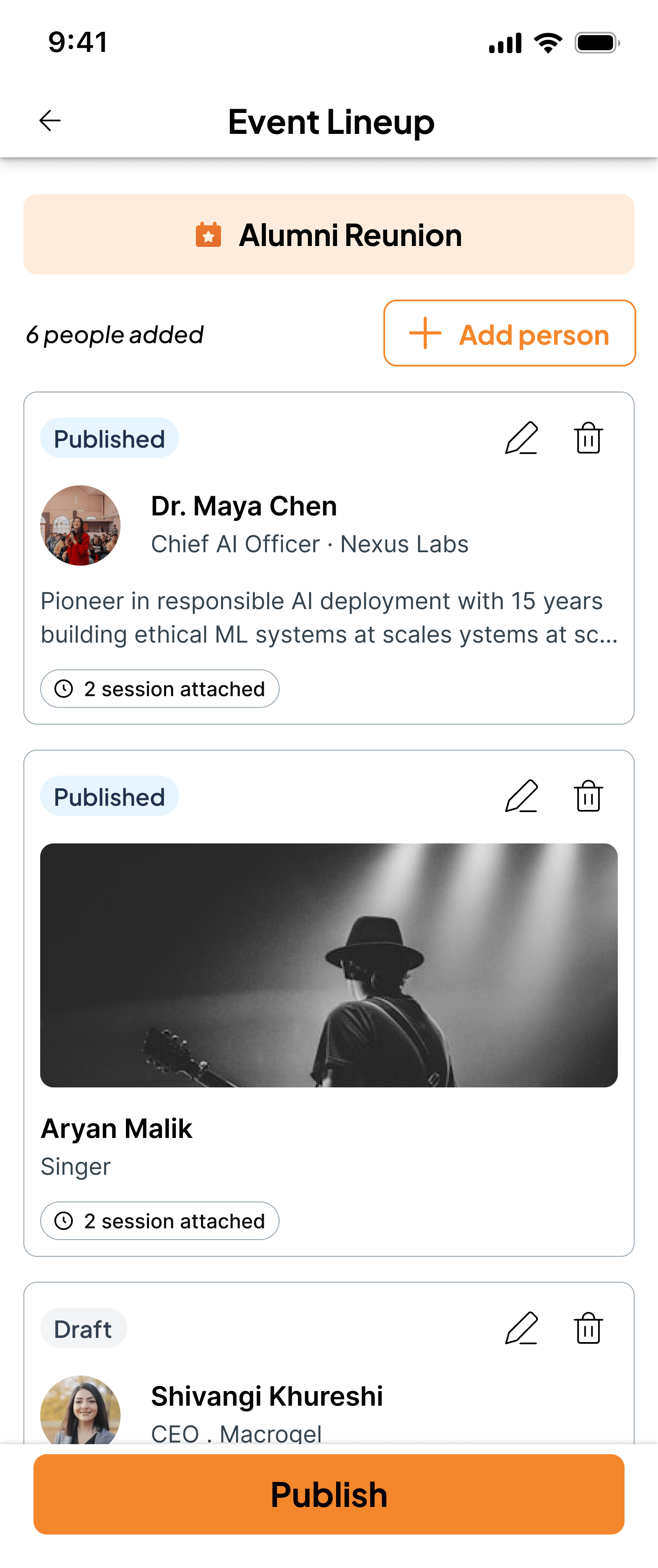 Event Lineup is available on all event types — Regular and Registered alike. Use it for conference speakers, festival performers, workshop facilitators, or the entertainment at a private celebration.
## Name the tab for your event
The Lineup tab takes the name that fits your event. Call it **Speakers** for a conference, **The Band** or **Lineup** for a music night, **Entertainment** for a party, or anything else that makes sense to your guests. You choose the label per event.
## Two card styles
Each person in your lineup appears as a card, and cards render in the style that suits them:
Best for speakers and panelists. Leads with name, role, and a short biography so guests understand their background and why they're featured.
Best for performers and artists. Leads with a hero photo and media links, putting the visual identity front and center.
## Linking to the agenda
Every lineup entry can be linked to one or more slots on your [Event Schedule](/private-events/event-schedule). The slot time is always read live from the agenda — so if you move a session, the lineup updates automatically and never shows a stale time.
This is what lets a guest go from "I want to see this speaker" to "they're on at 2 PM in the main hall" in one tap.
## Setting up your lineup
Go to your event and open the Lineup section. Name the tab to suit your event.
Enter their name and details. Choose a bio-led or visual-first card depending on whether they're a speaker or a performer.
Add any public links the person has agreed to share — their website, profile, or media. These are the links guests can use to learn more.
Connect the person to the agenda activity (or activities) they're featured in. The slot time is pulled live from your schedule.
Arrange the lineup in the order you want guests to see, then publish so it appears in the event.
Set your display order manually rather than relying on slot times. That way a headline act or keynote can sit at the top of the lineup even if they're not the first one on stage.
## What guests can do
Once published, guests can:
* Browse the full lineup and open any card to see details.
* See exactly when each person is on, pulled live from the agenda.
* Set a reminder so they don't miss a session or set.
* Export a slot to their own calendar.
* Open the public links the organizer added to learn more about a speaker or performer.
## Research with Claude
If a guest uses Claude in their own browser, they can research a featured person using the public links you've shared — pulling together a quick background on a speaker before a session, for example.
This research runs entirely in the guest's own browser session. Fast Party stores only the public links you, the organizer, choose to add — it never scrapes or stores third-party content. You stay in control of what's shared.
Event Lineup is available on all event types — Regular and Registered alike. Use it for conference speakers, festival performers, workshop facilitators, or the entertainment at a private celebration.
## Name the tab for your event
The Lineup tab takes the name that fits your event. Call it **Speakers** for a conference, **The Band** or **Lineup** for a music night, **Entertainment** for a party, or anything else that makes sense to your guests. You choose the label per event.
## Two card styles
Each person in your lineup appears as a card, and cards render in the style that suits them:
Best for speakers and panelists. Leads with name, role, and a short biography so guests understand their background and why they're featured.
Best for performers and artists. Leads with a hero photo and media links, putting the visual identity front and center.
## Linking to the agenda
Every lineup entry can be linked to one or more slots on your [Event Schedule](/private-events/event-schedule). The slot time is always read live from the agenda — so if you move a session, the lineup updates automatically and never shows a stale time.
This is what lets a guest go from "I want to see this speaker" to "they're on at 2 PM in the main hall" in one tap.
## Setting up your lineup
Go to your event and open the Lineup section. Name the tab to suit your event.
Enter their name and details. Choose a bio-led or visual-first card depending on whether they're a speaker or a performer.
Add any public links the person has agreed to share — their website, profile, or media. These are the links guests can use to learn more.
Connect the person to the agenda activity (or activities) they're featured in. The slot time is pulled live from your schedule.
Arrange the lineup in the order you want guests to see, then publish so it appears in the event.
Set your display order manually rather than relying on slot times. That way a headline act or keynote can sit at the top of the lineup even if they're not the first one on stage.
## What guests can do
Once published, guests can:
* Browse the full lineup and open any card to see details.
* See exactly when each person is on, pulled live from the agenda.
* Set a reminder so they don't miss a session or set.
* Export a slot to their own calendar.
* Open the public links the organizer added to learn more about a speaker or performer.
## Research with Claude
If a guest uses Claude in their own browser, they can research a featured person using the public links you've shared — pulling together a quick background on a speaker before a session, for example.
This research runs entirely in the guest's own browser session. Fast Party stores only the public links you, the organizer, choose to add — it never scrapes or stores third-party content. You stay in control of what's shared.