> ## Documentation Index
> Fetch the complete documentation index at: https://docs.fastparty.ai/llms.txt
> Use this file to discover all available pages before exploring further.
# Event Folder
> Share documents and files with your guests in a secure event folder.
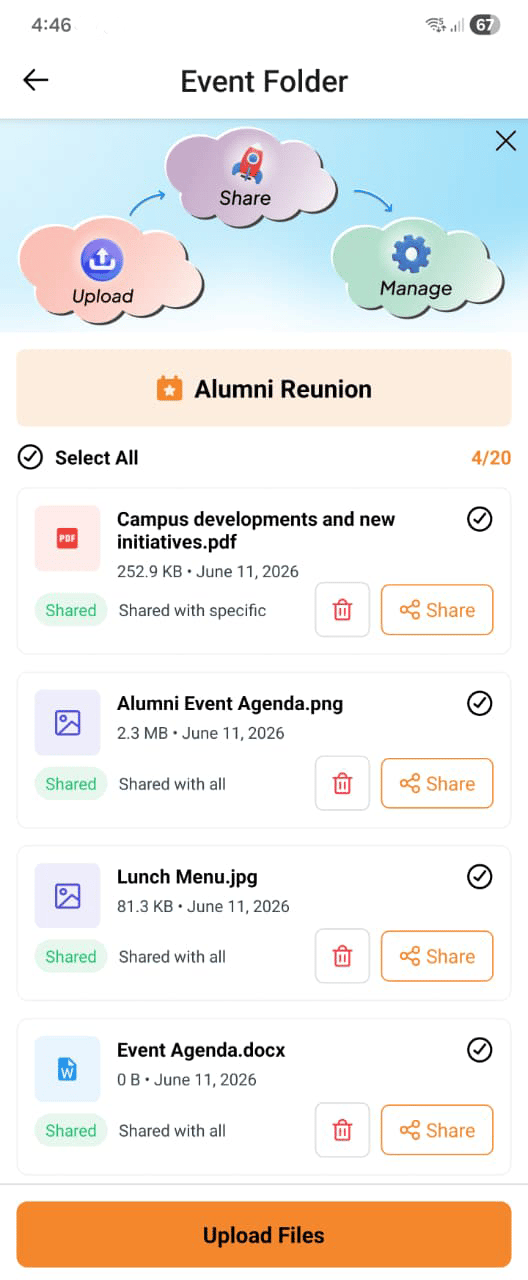
The Event Folder lets you upload and share documents with guests directly from your event. Upload a schedule, map, briefing pack, or any other file — and control exactly who can see it.
 ## Uploading files
Open your event and go to the **Event Folder** tab. Tap **Upload** and select a file from your device.
Supported file types include:
* PDF documents
* Images (JPEG, PNG, and other common formats)
* Other common document types
## Controlling visibility
When you upload a file, you choose who can see it:
| Visibility | Who sees the file |
| ------------------- | ------------------------------------- |
| **All guests** | Every guest on the event's guest list |
| **Specific guests** | Only the guests you select |
You can change visibility after uploading. For example, share a briefing document with co-hosts first, then open it to all guests when you're ready.
## Sharing with specific guests
Go to Event Folder and tap Upload.
Select the visibility option and search for the guests you want to share with.
Those guests can view and download the file from their invitation view.
## Deleting documents
To remove a file, tap the delete option next to it in the Event Folder. Deleted files are immediately removed and guests can no longer access them.
Deleting a file from the Event Folder is permanent. Make sure you no longer need the file before removing it.
Use the Event Folder to share documents that are useful before the event — directions, parking info, a dress code PDF, or a map of the venue — without cluttering the event description.
## Uploading files
Open your event and go to the **Event Folder** tab. Tap **Upload** and select a file from your device.
Supported file types include:
* PDF documents
* Images (JPEG, PNG, and other common formats)
* Other common document types
## Controlling visibility
When you upload a file, you choose who can see it:
| Visibility | Who sees the file |
| ------------------- | ------------------------------------- |
| **All guests** | Every guest on the event's guest list |
| **Specific guests** | Only the guests you select |
You can change visibility after uploading. For example, share a briefing document with co-hosts first, then open it to all guests when you're ready.
## Sharing with specific guests
Go to Event Folder and tap Upload.
Select the visibility option and search for the guests you want to share with.
Those guests can view and download the file from their invitation view.
## Deleting documents
To remove a file, tap the delete option next to it in the Event Folder. Deleted files are immediately removed and guests can no longer access them.
Deleting a file from the Event Folder is permanent. Make sure you no longer need the file before removing it.
Use the Event Folder to share documents that are useful before the event — directions, parking info, a dress code PDF, or a map of the venue — without cluttering the event description.