> ## Documentation Index
> Fetch the complete documentation index at: https://docs.fastparty.ai/llms.txt
> Use this file to discover all available pages before exploring further.
# Connecting Fast Party to Claude
> Add Fast Party to Claude as a custom MCP connector in a few clicks.
Fast Party connects to Claude as a **custom MCP connector** — not through the Connector Store. You add it once using the Fast Party MCP server URL, and then Fast Party is available in all your Claude conversations.
Fast Party in Claude requires a Claude Pro account or higher. The connection is per user — each person connects their own Fast Party account.
## Steps to connect
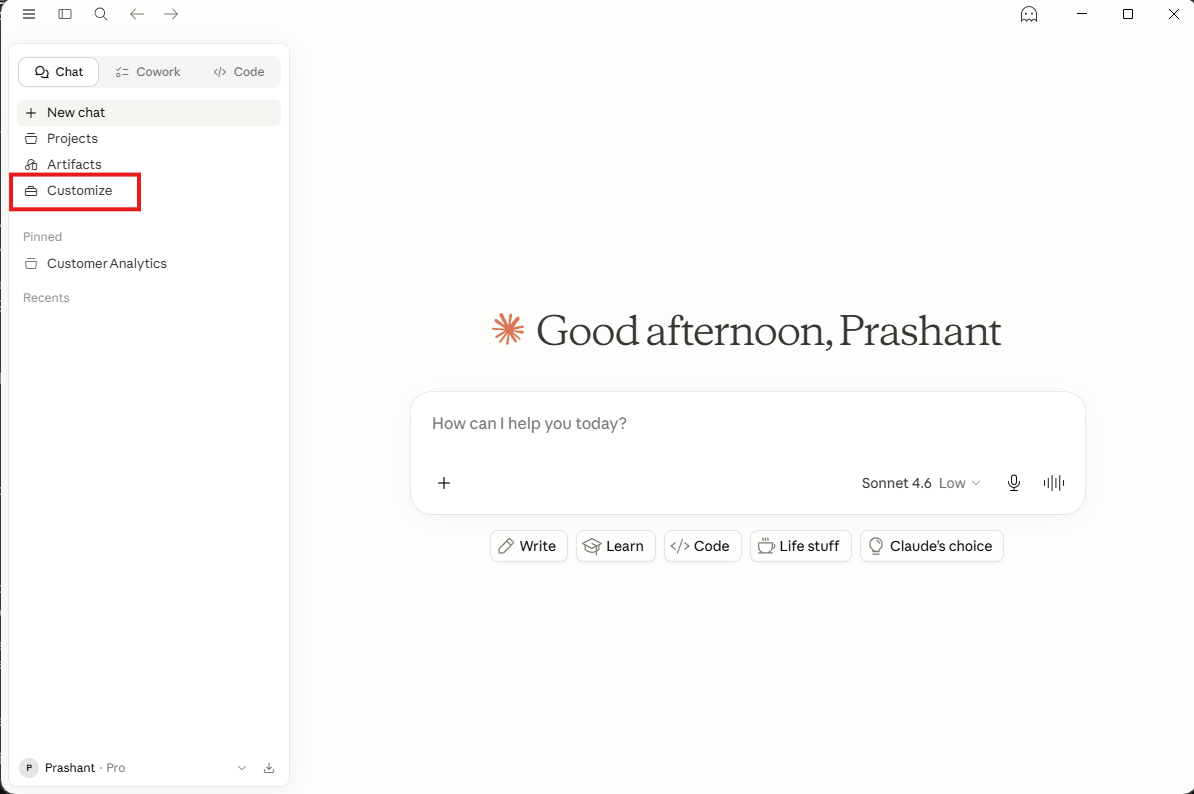
Go to [claude.ai](https://claude.ai) or open the Claude desktop app. In the left sidebar, click **Customize**.
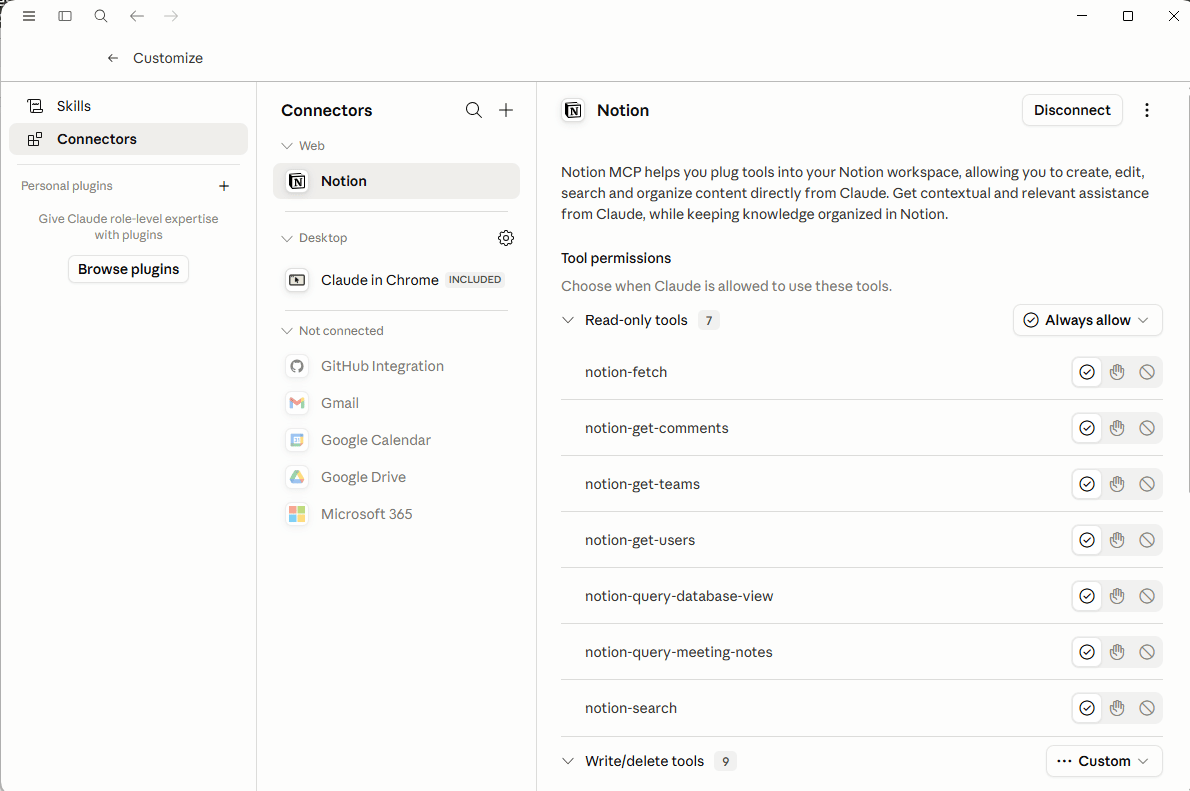
 In the Customize panel, select **Connectors** from the left menu.
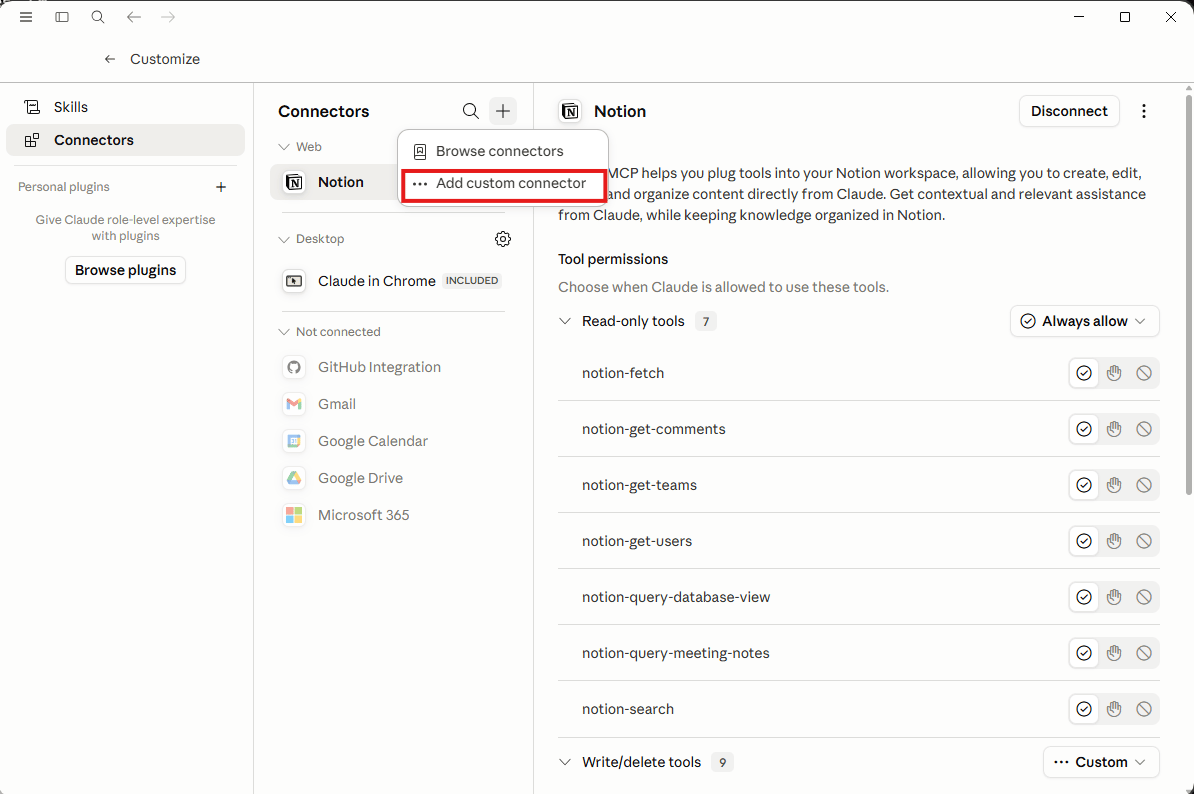
 Click the **+** icon at the top of the Connectors panel, then select **Add custom connector**.
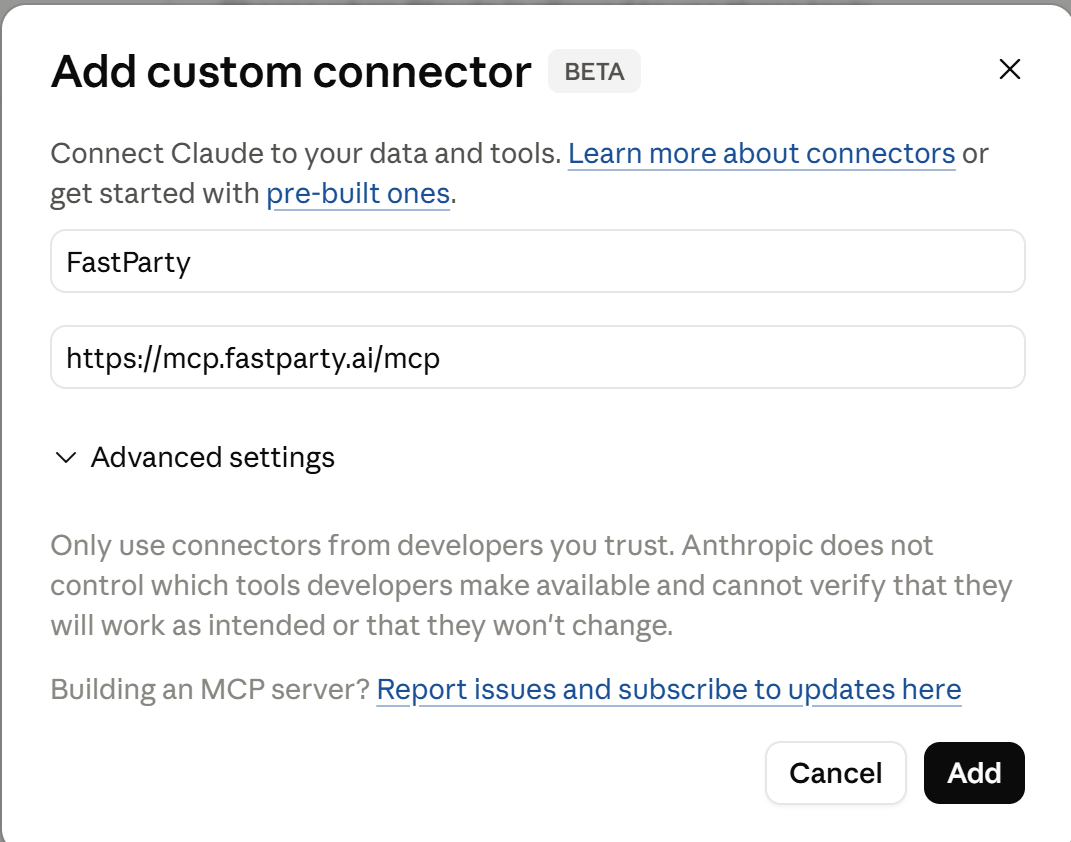
 In the dialog that appears, enter:
* **Name:** `Fast Party`
* **URL:** `https://mcp.fastparty.ai/mcp`
Then click **Add**.
In the dialog that appears, enter:
* **Name:** `Fast Party`
* **URL:** `https://mcp.fastparty.ai/mcp`
Then click **Add**.
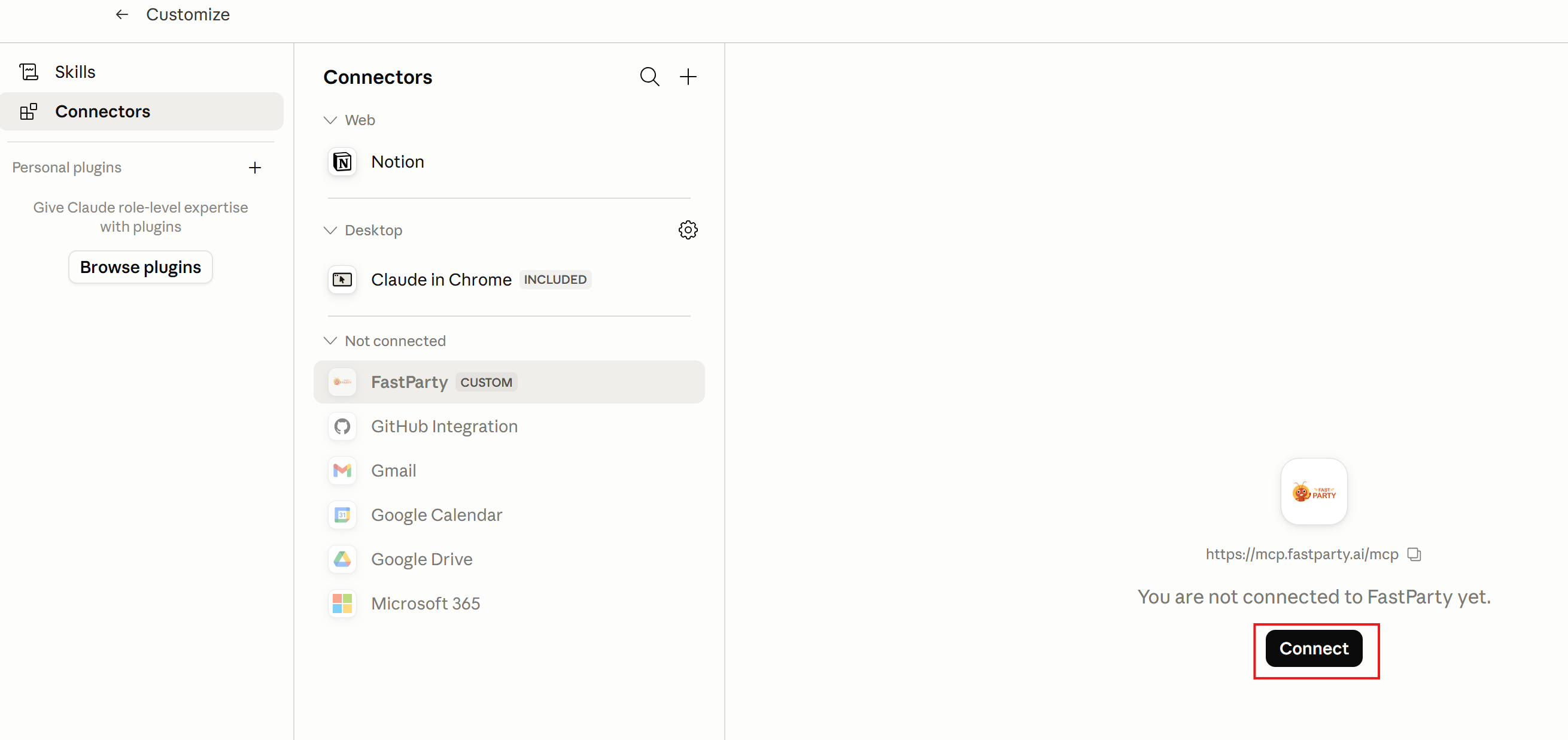
 Fast Party will appear in your Connectors list tagged as **CUSTOM**. Click **Connect** on the Fast Party listing.
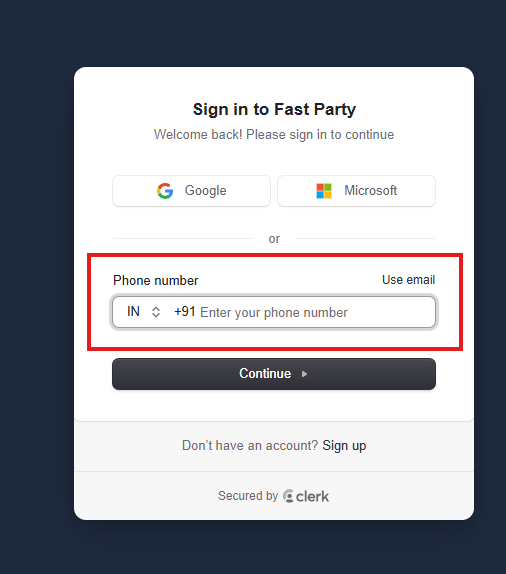
 A Fast Party sign-in window will open. Log in with your Fast Party account — using Google, Microsoft, phone number, or email. If you don't have an account yet, you can sign up at [app.fastparty.ai/signup](https://app.fastparty.ai/signup).
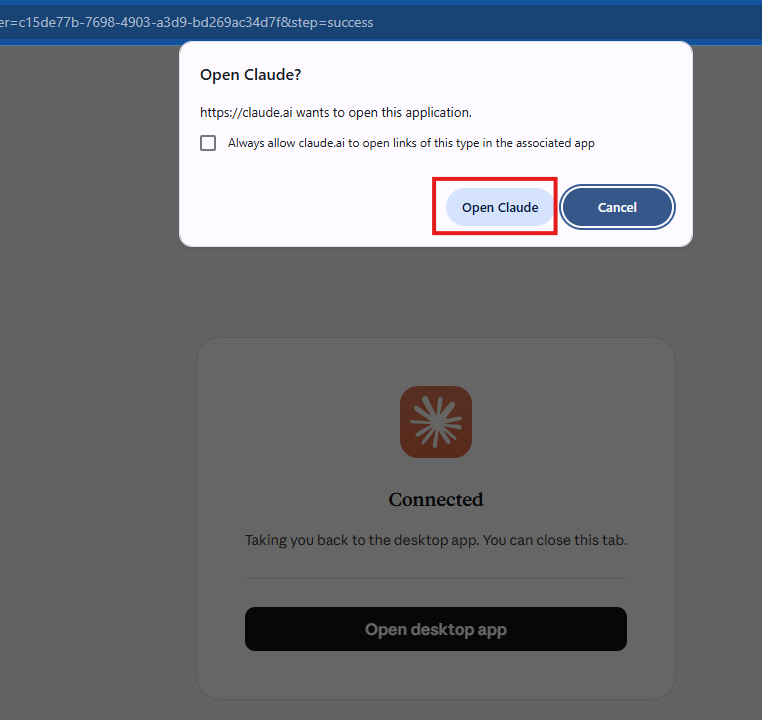
 After signing in, you'll see a confirmation that Fast Party is connected. Click **Open Claude** to return to the app.
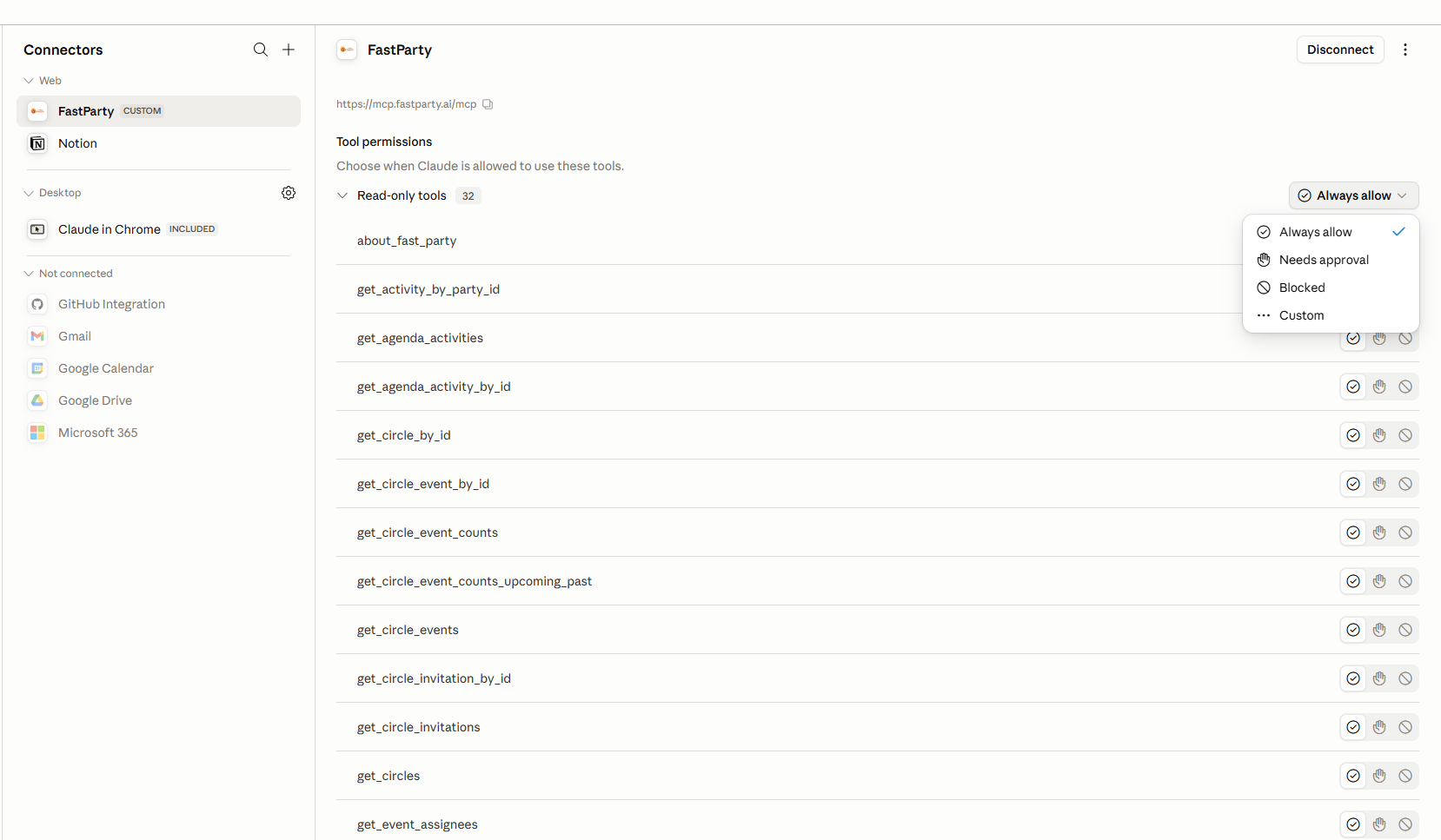
 Fast Party is now active in Claude. You'll see it listed under Connectors with its full set of tools. To confirm it's working, ask Claude:
> "What Fast Party tools do you have access to?"
Claude will list all the actions it can take on your behalf.
Fast Party is now active in Claude. You'll see it listed under Connectors with its full set of tools. To confirm it's working, ask Claude:
> "What Fast Party tools do you have access to?"
Claude will list all the actions it can take on your behalf.
 ## What permissions are requested?
When you connect Fast Party to Claude, you're giving Claude the ability to:
* Create and update your events
* Add guests and send invitations
* View RSVP statuses
* Set up agendas, tasks, food preferences, and potlucks
* Create and manage guest circles
Fast Party only accesses your data when you ask Claude to do something. It doesn't run in the background or make changes without your instruction.
## Disconnecting
To remove the connection, go to **Customize → Connectors → Fast Party → Disconnect**.
Disconnecting removes Claude's access to your Fast Party account. Your Fast Party data is never affected — everything stays intact in Fast Party.
## What permissions are requested?
When you connect Fast Party to Claude, you're giving Claude the ability to:
* Create and update your events
* Add guests and send invitations
* View RSVP statuses
* Set up agendas, tasks, food preferences, and potlucks
* Create and manage guest circles
Fast Party only accesses your data when you ask Claude to do something. It doesn't run in the background or make changes without your instruction.
## Disconnecting
To remove the connection, go to **Customize → Connectors → Fast Party → Disconnect**.
Disconnecting removes Claude's access to your Fast Party account. Your Fast Party data is never affected — everything stays intact in Fast Party.