> ## Documentation Index
> Fetch the complete documentation index at: https://docs.fastparty.ai/llms.txt
> Use this file to discover all available pages before exploring further.
# Posts, Polls and Surveys
> Keep your circle talking between events with posts, contribution posts, quick polls and AI-generated surveys.
The circle's feed keeps the group together between events. On the circle page, open **Posts & Polls** from the right edge of the page, click **Create** and choose what to make.
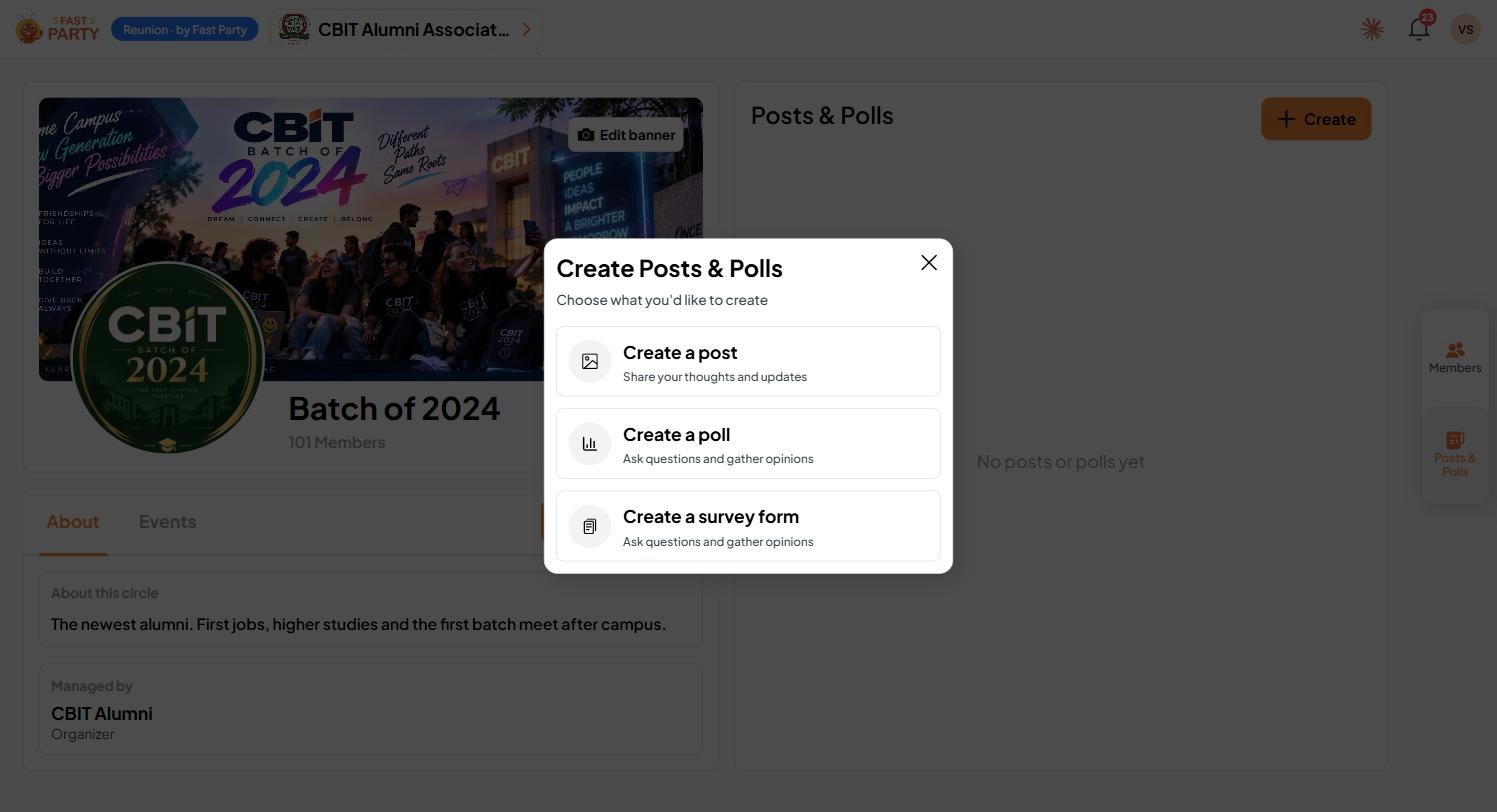 ## Post
Share your thoughts, news and photos with the circle: a welcome for new members, photos from the last meet, or a reminder of what's coming up.
### Collect contributions on a post
In an organization, a post can also **collect money for a cause**: a scholarship fund, a batch gift, relief for a member in need, or the kitty for the next reunion. Members contribute straight from the post.
| Field | What it does |
| - | - |
| **Goal amount** | Optional. The total you're aiming to raise. |
| **Contribution End Date** | Optional. When the collection closes. |
| **Contribution Options** | Required. Add **preset amounts** for members to pick from, let members **enter a custom amount**, or both. |
| **Razorpay account** | Required. The account contributions are paid into. |
Contributions go through your organization's own **Razorpay** account, so the money goes straight to you. Fast Party never holds it. If no account is listed, an admin needs to add one first in [organization settings](/organizations/setup#payments).
## Poll
Ask one question with a few options, such as which date works best, and set how long the poll stays open.
A poll is the quickest way to get a quiet group talking. "Which Saturday works for the next meet?" gets more replies than a post.
## Survey form
When you need several answers at once, let AI build the form for you. You describe what you want to find out, and Fast Party writes a complete survey: a title, a description, and a set of questions, each with the right way to answer.
Choose **Create a survey form** and write a line or two in plain language, then click **Generate a survey form**.
## Post
Share your thoughts, news and photos with the circle: a welcome for new members, photos from the last meet, or a reminder of what's coming up.
### Collect contributions on a post
In an organization, a post can also **collect money for a cause**: a scholarship fund, a batch gift, relief for a member in need, or the kitty for the next reunion. Members contribute straight from the post.
| Field | What it does |
| - | - |
| **Goal amount** | Optional. The total you're aiming to raise. |
| **Contribution End Date** | Optional. When the collection closes. |
| **Contribution Options** | Required. Add **preset amounts** for members to pick from, let members **enter a custom amount**, or both. |
| **Razorpay account** | Required. The account contributions are paid into. |
Contributions go through your organization's own **Razorpay** account, so the money goes straight to you. Fast Party never holds it. If no account is listed, an admin needs to add one first in [organization settings](/organizations/setup#payments).
## Poll
Ask one question with a few options, such as which date works best, and set how long the poll stays open.
A poll is the quickest way to get a quiet group talking. "Which Saturday works for the next meet?" gets more replies than a post.
## Survey form
When you need several answers at once, let AI build the form for you. You describe what you want to find out, and Fast Party writes a complete survey: a title, a description, and a set of questions, each with the right way to answer.
Choose **Create a survey form** and write a line or two in plain language, then click **Generate a survey form**.
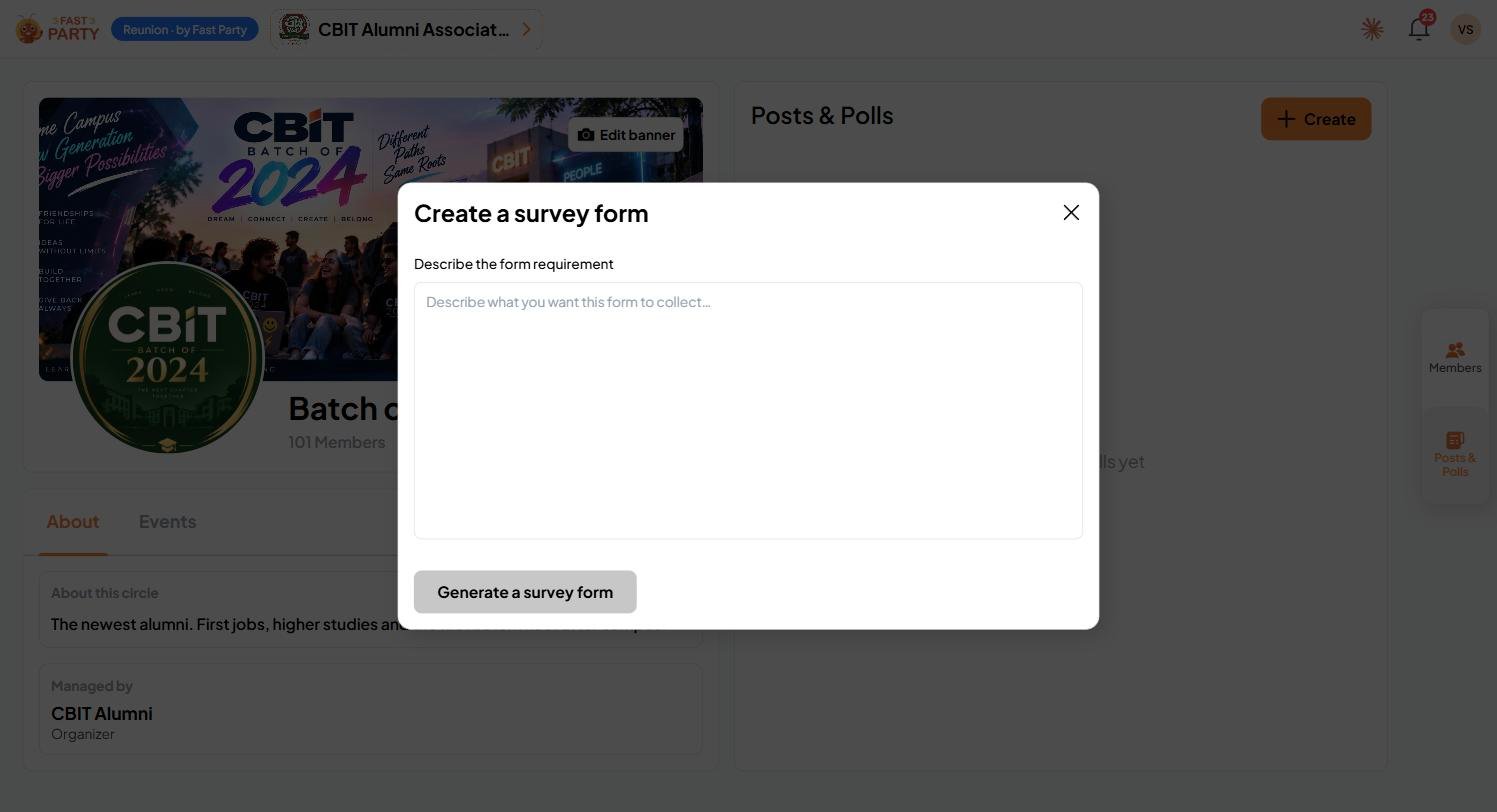 For example: *"CBIT Fresher Skills Survey. Gather insights from alumni on essential skills for CBIT freshers in 2027."*
You get a ready-to-send survey with a **Form Title**, a **Form Description** and the questions. Each question comes with a suitable answer type, such as a 1 to 5 rating from Low to High.
For example: *"CBIT Fresher Skills Survey. Gather insights from alumni on essential skills for CBIT freshers in 2027."*
You get a ready-to-send survey with a **Form Title**, a **Form Description** and the questions. Each question comes with a suitable answer type, such as a 1 to 5 rating from Low to High.
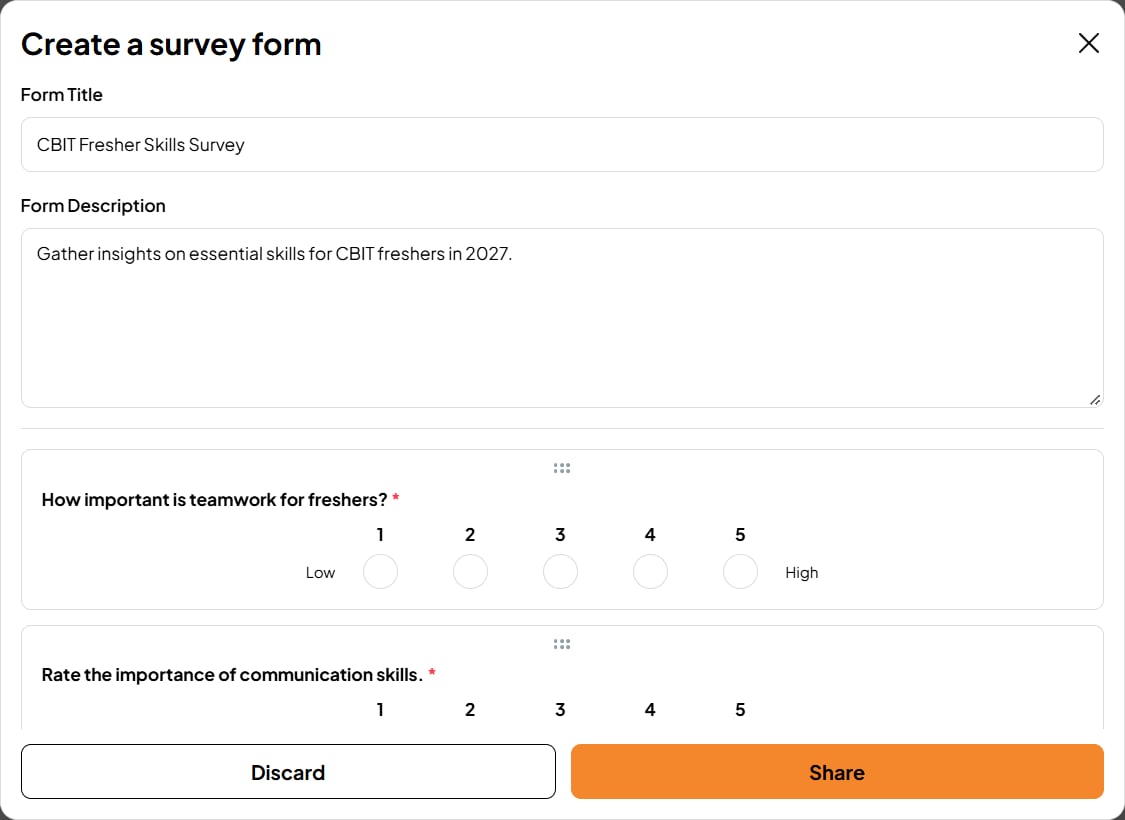 Everything is editable before you send it:
* **Edit** the title, description or any question's wording
* **Change the answer type**, for example from a text answer to a rating
* **Delete** questions you don't need
* **Reorder** questions by dragging the handle at the top of each one
Click **Share** to send the survey to the circle, or **Discard** to start again.
The more specific your description, the better the questions. Say who's answering and what you'll do with the results: "Ask alumni which skills freshers lack most, so we can plan next year's workshops."
This documentation is built and hosted on [Mintlify](https://mintlify.com), a developer documentation platform.
Everything is editable before you send it:
* **Edit** the title, description or any question's wording
* **Change the answer type**, for example from a text answer to a rating
* **Delete** questions you don't need
* **Reorder** questions by dragging the handle at the top of each one
Click **Share** to send the survey to the circle, or **Discard** to start again.
The more specific your description, the better the questions. Say who's answering and what you'll do with the results: "Ask alumni which skills freshers lack most, so we can plan next year's workshops."
This documentation is built and hosted on [Mintlify](https://mintlify.com), a developer documentation platform.