> ## Documentation Index
> Fetch the complete documentation index at: https://docs.fastparty.ai/llms.txt
> Use this file to discover all available pages before exploring further.
# Create a Circle
> Name your circle, describe it, add a banner and invite your people.
Creating a circle takes a couple of minutes. You can change everything later.
On your Home page, under **My Circles**, click **Create Circle**.
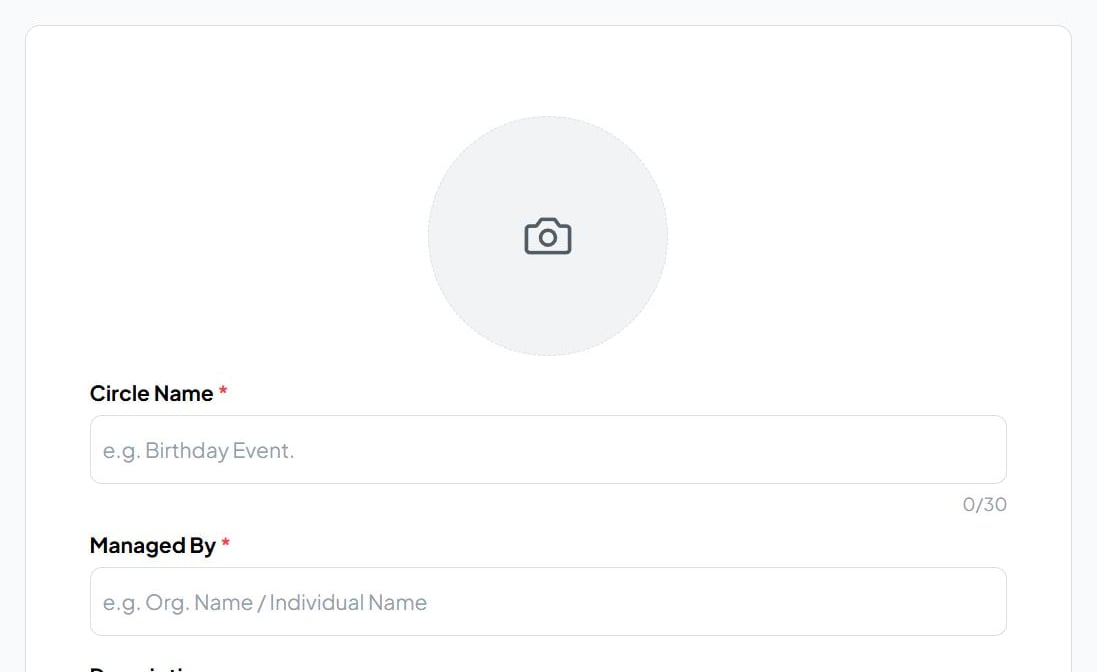 | Field | What it's for |
| - | - |
| **Circle photo** | The round image members see in their circle list. |
| **Circle Name** | Required, up to 30 characters. A name members will recognize. |
| **Managed By** | Required. The organization or person running the circle. Members see it on the **About** tab. |
| **Description** | Optional, up to 280 characters. What the group is for. |
| **Hide Member List** | Turn on to stop members seeing who else is in the circle. Useful for large or client-facing groups. |
Click **Create Circle**.
On the circle page, click **Edit banner** to add a wide image across the top. Upload your own, or generate one with AI.
Click **Add Members** and enter each person's phone number or email. They're sent an invitation on WhatsApp or email to join. [Members →](/circles/members)
Connected to Claude or ChatGPT? Say "Create a circle called Weekend Riders with these 20 people and make a banner for it," and it's done. [Connect your AI →](/platforms#connect-your-ai)
## Change it later
Open the **⋮** menu next to the circle's name:
| Option | What it does |
| - | - |
| **Edit Circle** | Change the name, photo, description or member list setting. |
| **Settings** | See the circle's organization and notification details. |
| **Delete Circle** | Remove the circle. Events it has already been used for aren't affected. |
| **Exit Circle** | Leave the circle yourself. |
## What's next
Invite the whole circle in one step.
The quickest way to get the group talking.
This documentation is built and hosted on [Mintlify](https://mintlify.com), a developer documentation platform.
| Field | What it's for |
| - | - |
| **Circle photo** | The round image members see in their circle list. |
| **Circle Name** | Required, up to 30 characters. A name members will recognize. |
| **Managed By** | Required. The organization or person running the circle. Members see it on the **About** tab. |
| **Description** | Optional, up to 280 characters. What the group is for. |
| **Hide Member List** | Turn on to stop members seeing who else is in the circle. Useful for large or client-facing groups. |
Click **Create Circle**.
On the circle page, click **Edit banner** to add a wide image across the top. Upload your own, or generate one with AI.
Click **Add Members** and enter each person's phone number or email. They're sent an invitation on WhatsApp or email to join. [Members →](/circles/members)
Connected to Claude or ChatGPT? Say "Create a circle called Weekend Riders with these 20 people and make a banner for it," and it's done. [Connect your AI →](/platforms#connect-your-ai)
## Change it later
Open the **⋮** menu next to the circle's name:
| Option | What it does |
| - | - |
| **Edit Circle** | Change the name, photo, description or member list setting. |
| **Settings** | See the circle's organization and notification details. |
| **Delete Circle** | Remove the circle. Events it has already been used for aren't affected. |
| **Exit Circle** | Leave the circle yourself. |
## What's next
Invite the whole circle in one step.
The quickest way to get the group talking.
This documentation is built and hosted on [Mintlify](https://mintlify.com), a developer documentation platform.