> ## Documentation Index
> Fetch the complete documentation index at: https://docs.fastparty.ai/llms.txt
> Use this file to discover all available pages before exploring further.
# Connecting Fast Party to ChatGPT
> Add Fast Party to ChatGPT as a custom MCP app and manage your events through conversation.
Fast Party connects to ChatGPT as a **custom MCP app**. You add it once using the Fast Party MCP server URL, sign in with your Fast Party account, and then manage events directly from ChatGPT.
Custom MCP apps in ChatGPT require developer mode. The connection is per user — each person connects their own Fast Party account.
## Steps to connect
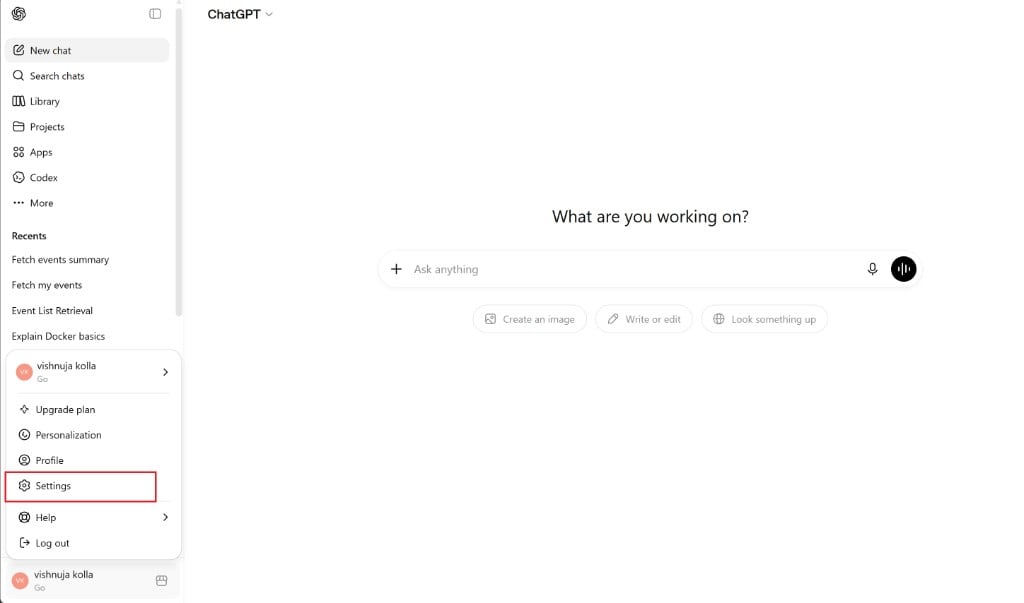
Go to [chatgpt.com](https://chatgpt.com) and sign in. Click your profile name in the bottom-left corner of the sidebar, then select **Settings**.
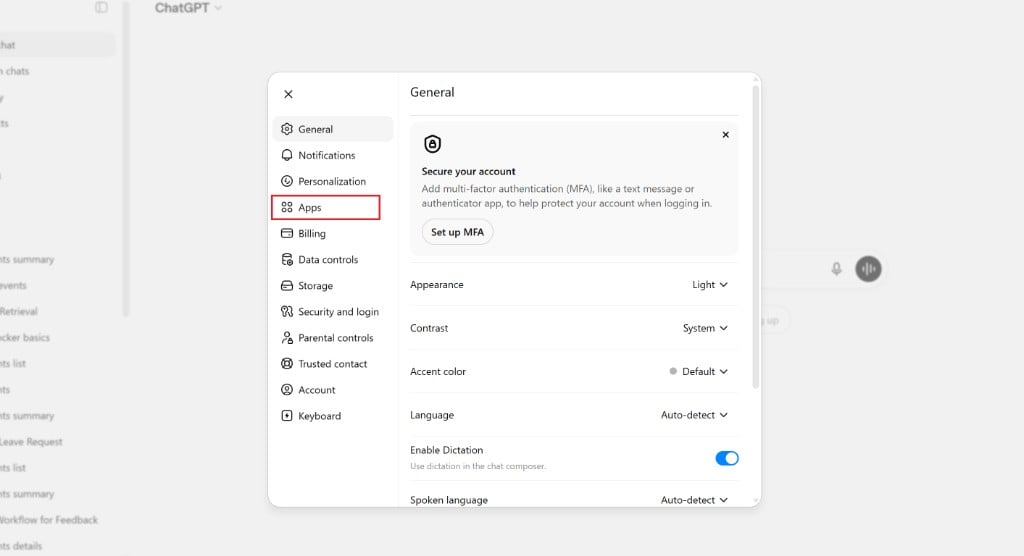
 In the Settings modal, select **Apps** from the left menu.
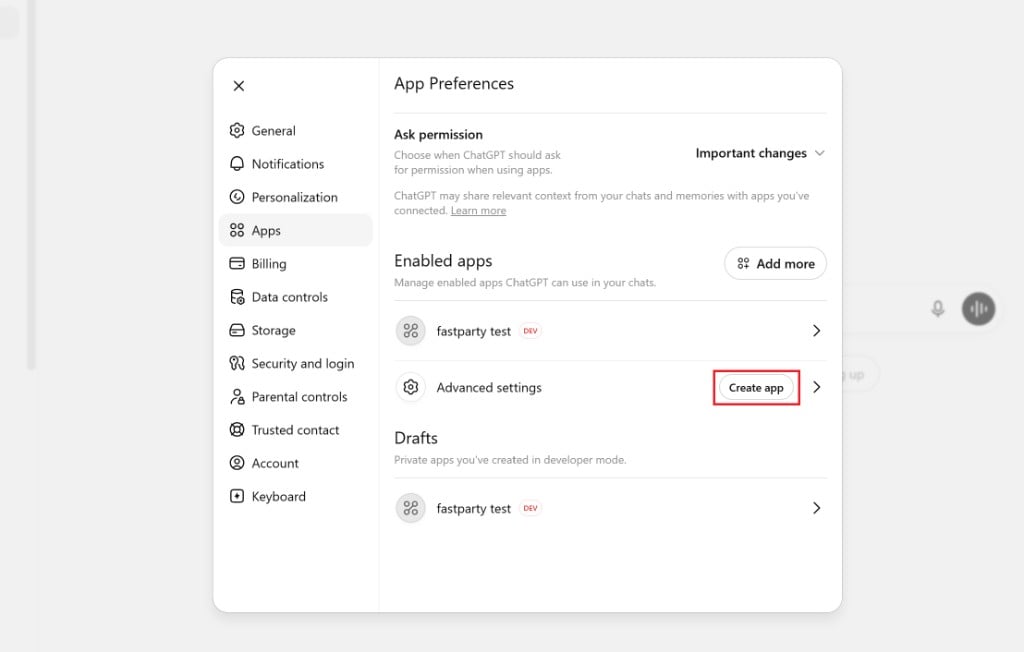
 Under **Enabled apps**, find **Advanced settings** and click **Create app**.
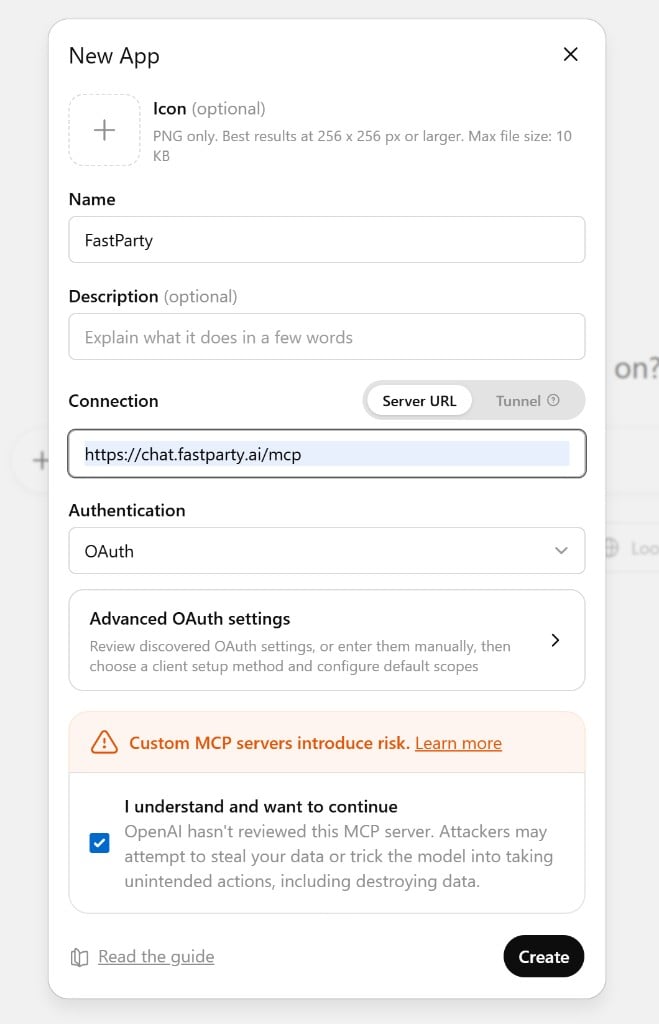
 In the **New App** dialog, enter:
* **Name:** `FastParty`
* **Connection type:** Server URL
* **URL:** `https://chat.fastparty.ai/mcp`
* **Authentication:** OAuth
Check **I understand and want to continue**, then click **Create**.
In the **New App** dialog, enter:
* **Name:** `FastParty`
* **Connection type:** Server URL
* **URL:** `https://chat.fastparty.ai/mcp`
* **Authentication:** OAuth
Check **I understand and want to continue**, then click **Create**.
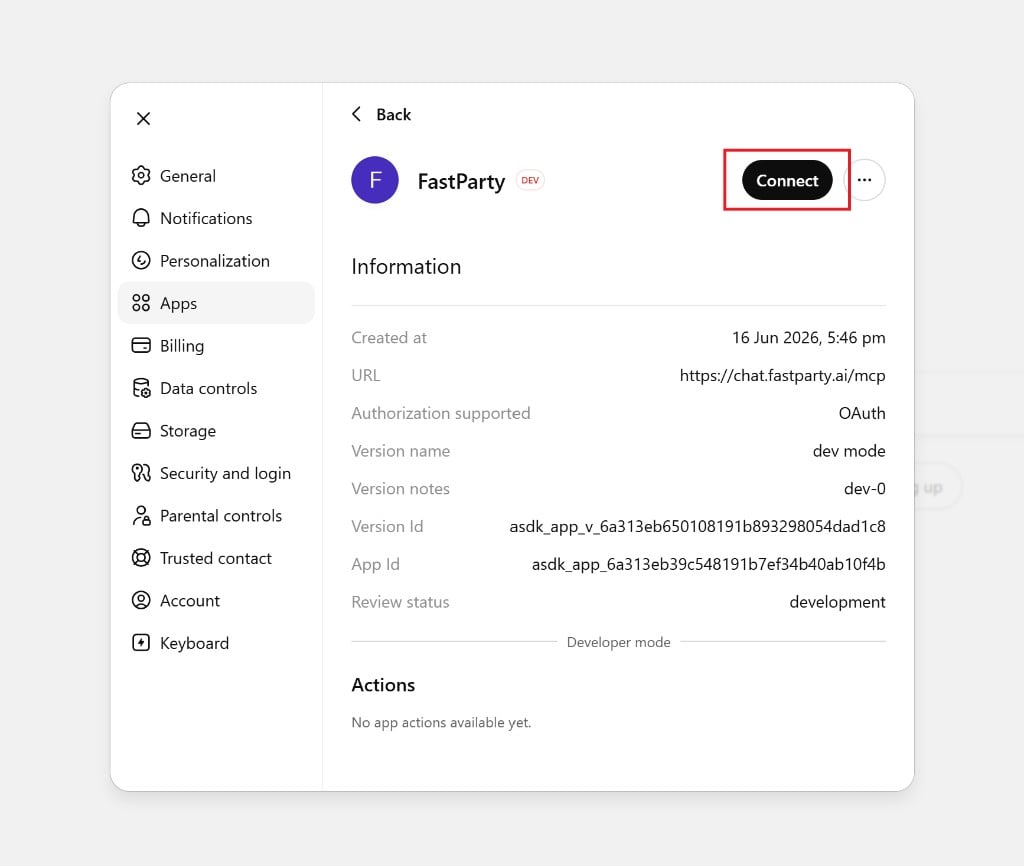
 Fast Party appears in your apps list. Open it and click **Connect**.
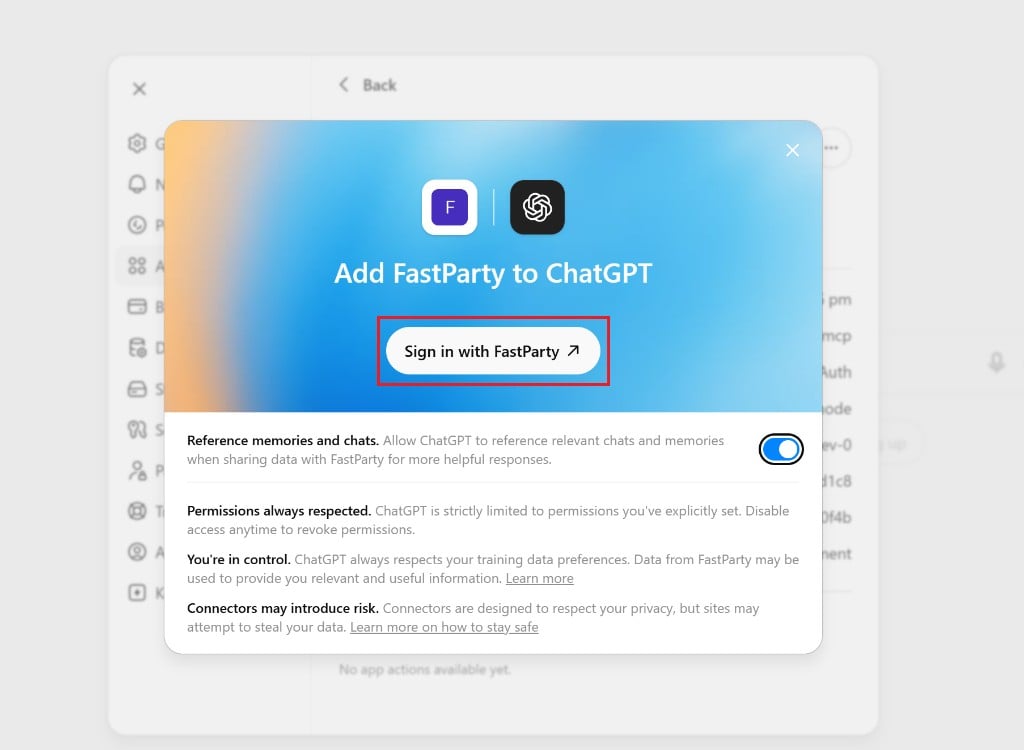
 An **Add FastParty to ChatGPT** window opens. Click **Sign in with FastParty** to authorise the connection.
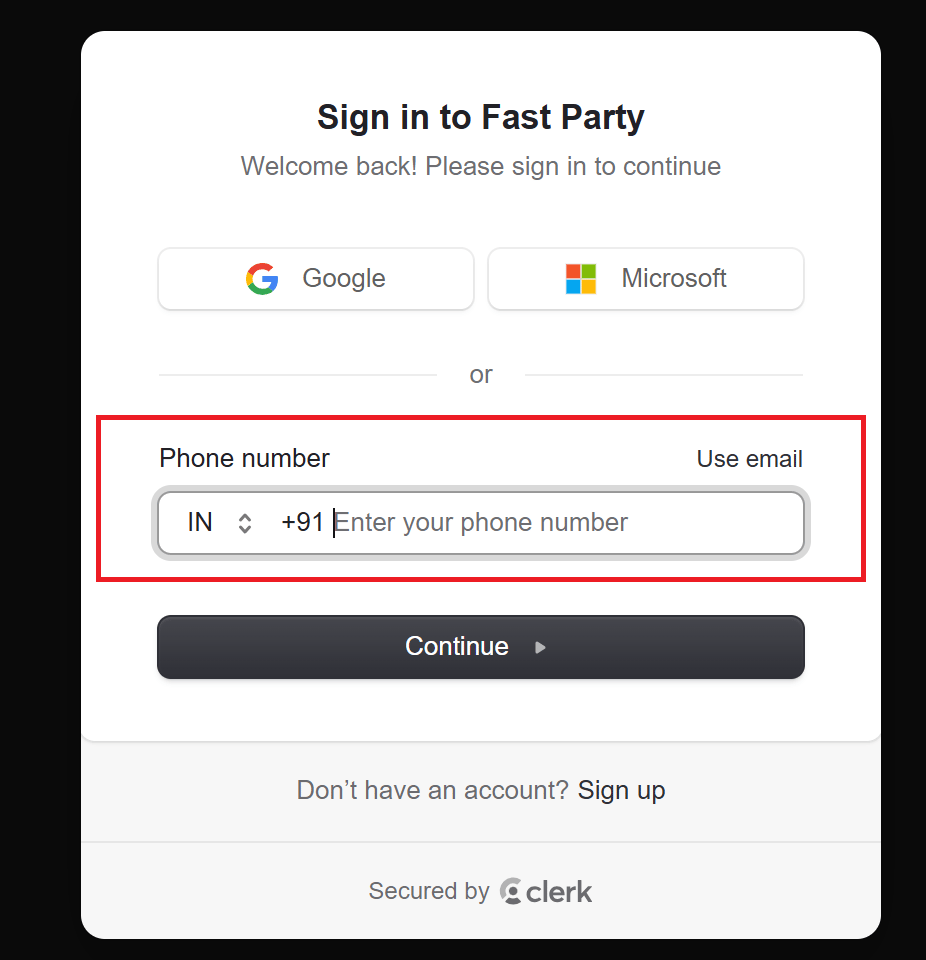
 Sign in with your Fast Party account — using Google, Microsoft, phone number, or email. If you don't have an account yet, you can sign up at [app.fastparty.ai/signup](https://app.fastparty.ai/signup).
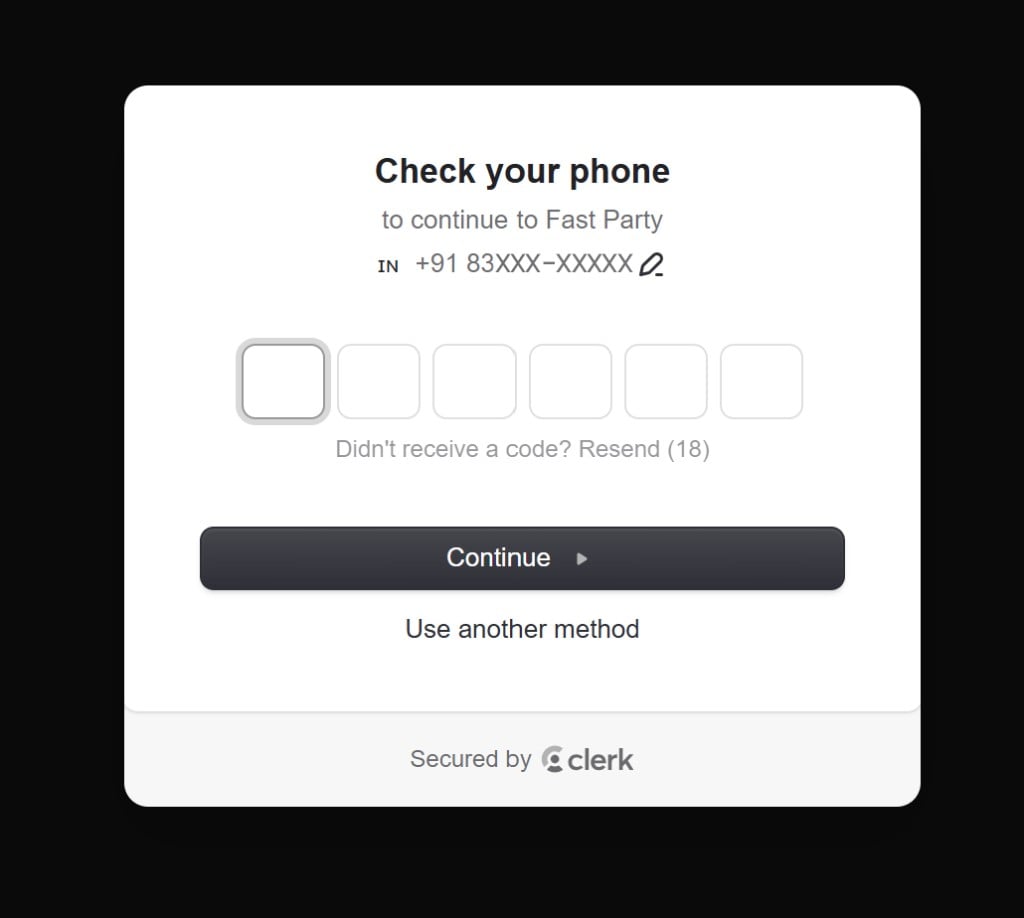
 If you sign in with a phone number, enter the 6-digit code sent to your phone, then click **Continue**.
 Fast Party is now connected to ChatGPT. In **Settings → Apps**, you can see the connection details and manage permissions. Click **Refresh** if the connection status doesn't update right away.
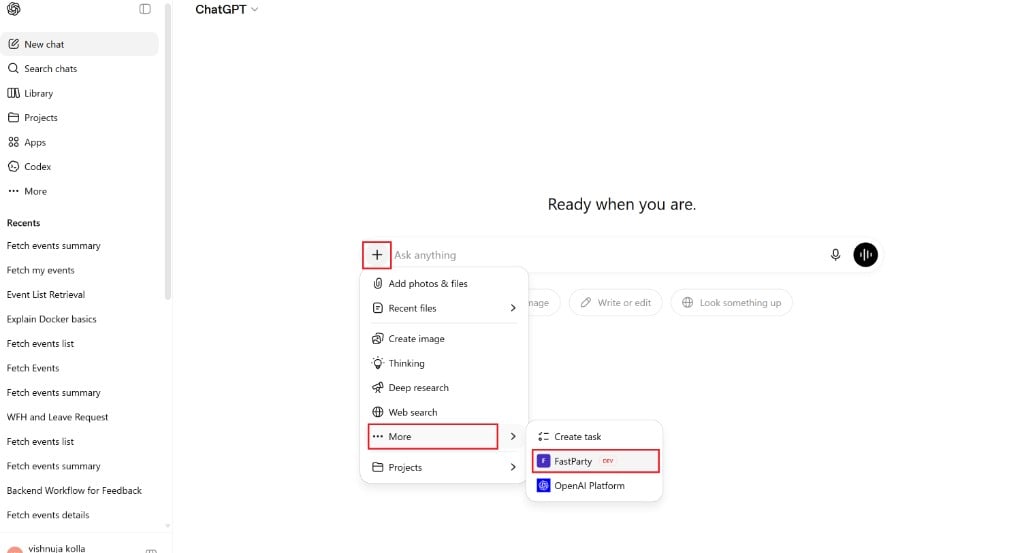
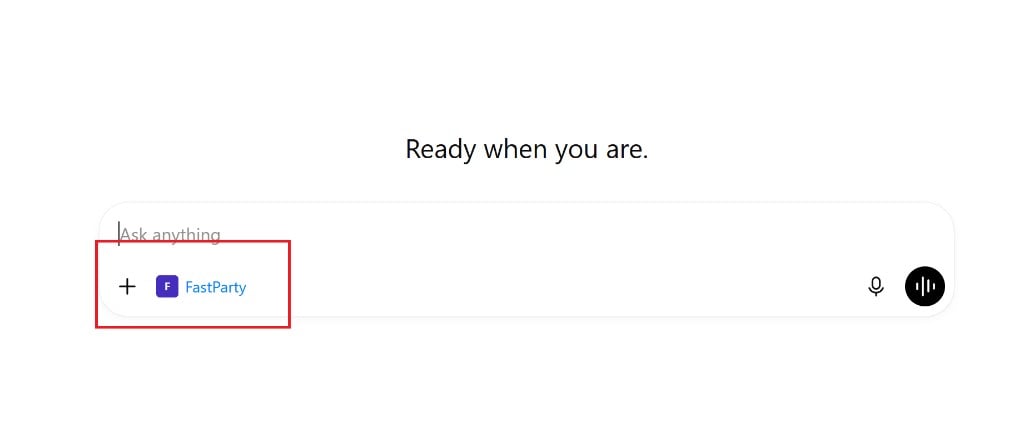
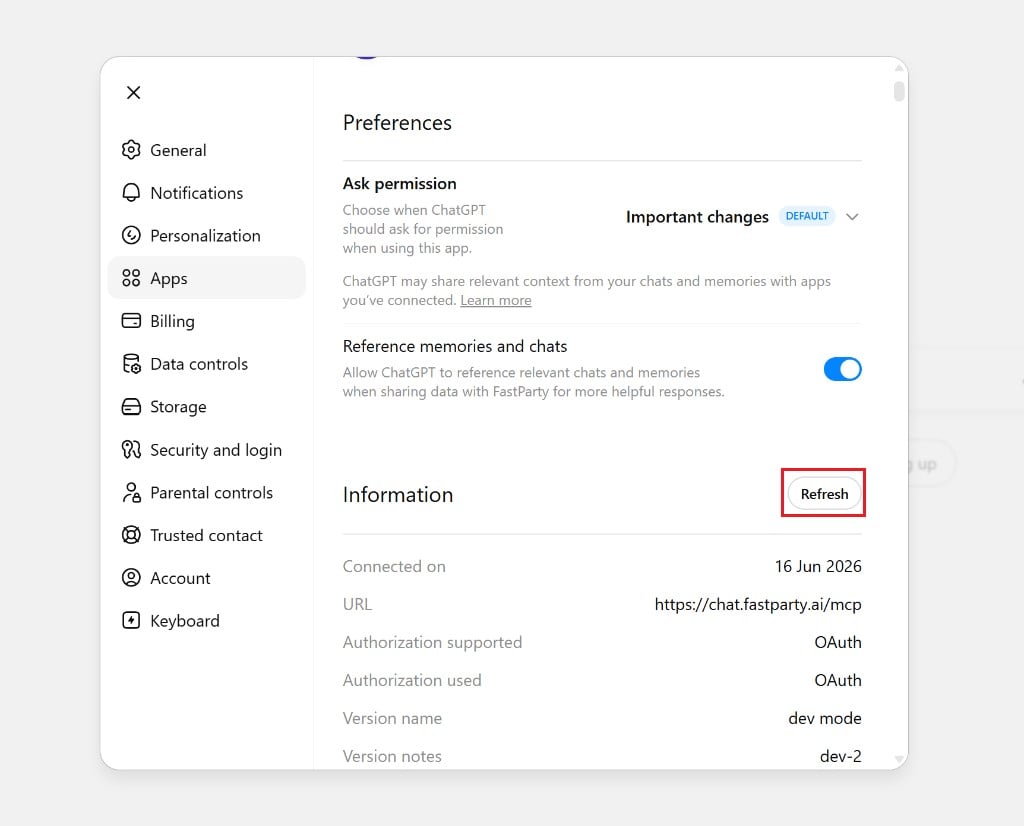 Start a new chat. Click the **+** icon in the message bar, select **More**, then choose **FastParty**. Fast Party appears in the composer and is ready to use.
 With Fast Party selected, ask ChatGPT to manage your events — for example, "What events do I have coming up?" or "Create a dinner party for next Friday."
 ## What permissions are requested?
When you connect Fast Party to ChatGPT, you're giving ChatGPT the ability to:
* Create and update your events
* Add guests and send invitations
* View RSVP statuses
* Set up agendas, tasks, food preferences, and potlucks
* Create and manage guest circles
Fast Party only accesses your data when you ask ChatGPT to do something. It doesn't run in the background or make changes without your instruction.
## What you can do via ChatGPT
The same Fast Party capabilities available through Claude are available through ChatGPT:
* Create and edit events
* Invite guests and track RSVPs
* Build and publish event schedules
* Set up food & beverage preferences
* Create and manage potluck sign-ups
* Create and assign tasks
* Manage registered events and approve registrants
* Set up and manage Circles
## Example prompts
> "Create a dinner party for next Friday at 7 PM at my place, for 12 guests."
> "Add a potluck to my birthday party — mains, sides, desserts, 3 slots each — and publish it."
> "Show me the RSVPs for my housewarming event."
> "Set up a conference agenda: registration at 9 AM, keynote at 10, lunch at 12:30, workshops at 2 PM."
> "Approve all pending registrations for my charity gala."
## Disconnecting
To remove the connection, go to **Settings → Apps**, open Fast Party, and disconnect the app.
Disconnecting removes ChatGPT's access to your Fast Party account. Your Fast Party data is never affected — everything stays intact in Fast Party.
## What permissions are requested?
When you connect Fast Party to ChatGPT, you're giving ChatGPT the ability to:
* Create and update your events
* Add guests and send invitations
* View RSVP statuses
* Set up agendas, tasks, food preferences, and potlucks
* Create and manage guest circles
Fast Party only accesses your data when you ask ChatGPT to do something. It doesn't run in the background or make changes without your instruction.
## What you can do via ChatGPT
The same Fast Party capabilities available through Claude are available through ChatGPT:
* Create and edit events
* Invite guests and track RSVPs
* Build and publish event schedules
* Set up food & beverage preferences
* Create and manage potluck sign-ups
* Create and assign tasks
* Manage registered events and approve registrants
* Set up and manage Circles
## Example prompts
> "Create a dinner party for next Friday at 7 PM at my place, for 12 guests."
> "Add a potluck to my birthday party — mains, sides, desserts, 3 slots each — and publish it."
> "Show me the RSVPs for my housewarming event."
> "Set up a conference agenda: registration at 9 AM, keynote at 10, lunch at 12:30, workshops at 2 PM."
> "Approve all pending registrations for my charity gala."
## Disconnecting
To remove the connection, go to **Settings → Apps**, open Fast Party, and disconnect the app.
Disconnecting removes ChatGPT's access to your Fast Party account. Your Fast Party data is never affected — everything stays intact in Fast Party.